Add restrictions to your data entries in columns.
In a sheet, you can use various column types to establish restrictions for data entry. Depending on the restrictions you set, you may still be able to type text or add a new value into a cell, even when a column property is in place.
For example, your sheet can have a checkbox column, however, collaborators can still add free texts and overwrite the checkbox.
The only columns you can't overwrite are the following system columns:
- Auto number
- Latest comment
- Created by
- Created date
- Modified by
- Modified date
Restrict column data to specific values
You can restrict data entry to specific values in the following columns:
- Dropdown list
- Dates
- Contact list
- Checkbox
- Symbols
To restrict data in columns:
- Right-click the column header or select the Column Menu
Brandfolder Image
 .
. - Select Edit Column Properties.
- Turn on the Restrict to toggle.
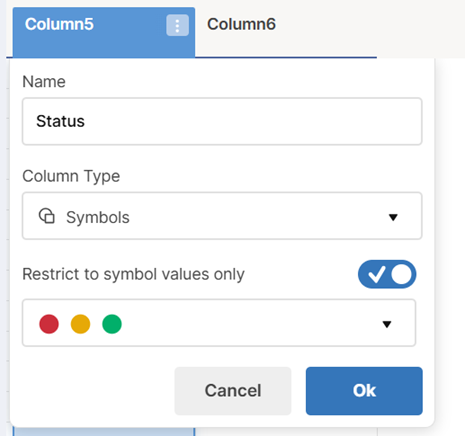
These same restrictions apply to any web forms associated with the sheet.
Owners and Admins can bypass data validation. They receive a warning message if they attempt to enter a different value from those specified as valid for the column.