In table view, you can duplicate columns and their properties without copying their data, giving you new columns that are configured the way you need them.
USM Content
Duplicate a column
- Select the column or columns you want to duplicate. These can be single, consecutive, or non-consecutive columns.
- In the column options menu, select Duplicate column.
You can also duplicate columns by copying (Ctrl+C on Windows or Cmd+C on Mac) and pasting (Ctrl+V or Cmd+V).
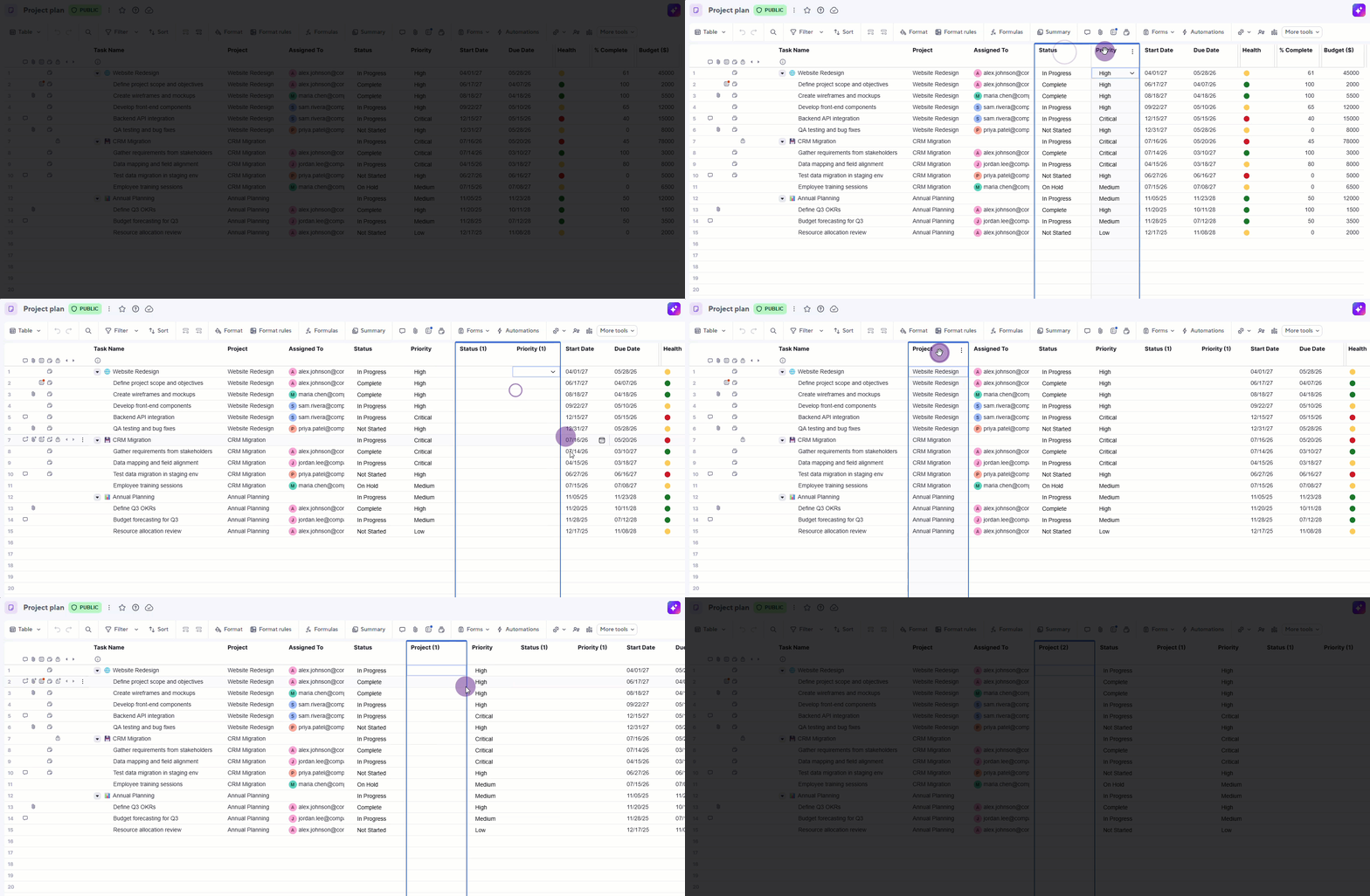
A new column keeps the following properties from the original:
- Column type
- Dropdown and contact list options
- Color chip selections
- Formatting
- Validation settings
- Description and other column-level settings
The row data doesn't carry over. The duplicated column cells start empty.
Types of columns you can duplicate
The following table highlights which column types you can or can't duplicate:
| Can duplicate | Can't duplicate |
|---|---|
Text/Number Date Checkbox Status Progress Trends Ratings Duration Contact list Translation Summary Sentiment | System Columns: Auto-number Created Date Modified Date Created By Modified By Latest Comment Special Columns: Primary column Linked columns Dependent filter Auto number Gantt Resource management Baseline |