Use this Bridge workflow to copy data in a row from specific columns on your source sheet to your target sheet. When this workflow runs, it grabs all the data in the row from the source sheet and copy specific columns into a new row on your target sheet.
USM Content
What you need to get started
- In Smartsheet:
- The source sheet ID (where we copy row data from)
- The target sheet ID (where we paste the data to)
- Column IDs for the columns in your target sheet
To build this workflow in Bridge, authenticate the Smartsheet integration for your Bridge workspace.
- In Bridge:
- Smartsheet integration
- When Column Values Change trigger
- Bridge Workflow modules:
- Smartsheet - Get Row
- Conditional Junctions - Match
- Smartsheet - Add Row
- Smartsheet - Delete Row (optional)
- Smartsheet - Update Row (optional)
Get started
While building your workflow, keep your sheet and your Bridge workflow open in two separate tabs. This makes navigating the build process easier!
- Create a new workflow in Bridge.
- In the workflow builder, use the panel to add modules in this order:
- Integrations > Smartsheet > Get Row
- Utilities > Conditional Junctions > Match
- Name it: Check if complete
- Drag a New State to the Junction on the left path and name it: Status is Complete
- Drag a New State to the Junction on the right path and name it: Any other status
- Integrations > Smartsheet > Add Row. Place this module under the Status is Complete path
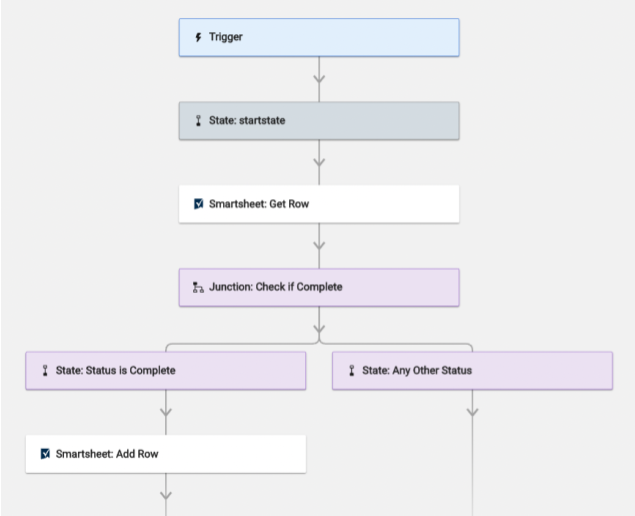
This is what you should see in your workflow when you're done:
Set up the workflow trigger
After creating the basic workflow model, start setting up the workflow trigger.
- Select the Trigger module
- To open the Integration panel in a new tab, in the Integrations section, select Integrations Page
Locate Smartsheet from the integration list
Use the Connected option under the Bridge logo to get a list of only the integrations authenticated for that workspace.
- Expand the Triggers row
- Select Add to Triggers
- Fill in the following fields:
- Trigger Name: Create a custom label for your trigger
- Sheet ID: Paste your source sheet ID
- Event Type: Select When Column Values are Changed
- Column Name or ID: Type the name of the Smartsheet column that triggers the copy of your row. The example you'll see in the next section is called Status A
- Select Workflow: Select the new workflow you just created from the dropdown list
- Select Save
Return to your workflow
If you want to return to the original tab, refresh the page to see the trigger.
Set up the workflow modules
Before getting started with the module setup, trigger the workflow to create a Run Log entry.
- Go to your source sheet.
- Change the trigger column's value to Complete. In this example, the workflow is triggered from the Status A column.

- Save the sheet.
Now there's a workflow run entry in the Run Log of your Bridge workflow. Use the trigger data to populate the first module.
Set up the Get Row module
In this workflow, the Get Row module populates the new row in your target sheet. When the Get Row module runs, Bridge pulls the row data. Then, it pushes the data into the workflow's Run Log.
From the Run Log, you can reference data in the next stages of the workflow.
- In the Sheet field, paste the source sheet ID.
- In the Row ID field, paste the runtime reference for the row ID.
- Save the workflow.
- In your source sheet, change the trigger column value to something else.
- This creates a new Run Log entry we can use data from to populate the next module.

- This creates a new Run Log entry we can use data from to populate the next module.
- Save the sheet.
This triggers your workflow, and now you have a new run in your Run Log.
Set up the Match module
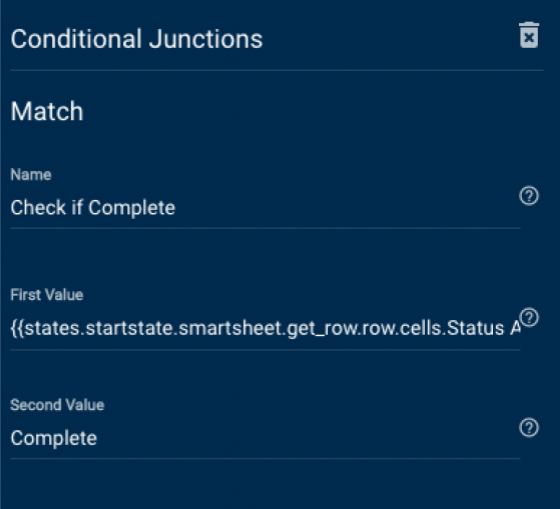
In this workflow, the Match module checks the value in the Status column of the source sheet. If the status is Complete, the workflow follows the left Status is Complete path. For any other value in the Status column, the workflow follows the Any Other Status path.
- In the First Value field, paste the runtime data reference for your trigger column.
- Open the Run Log and select the last run.
- Navigate to Smartsheet: Get Row > row > cells.
- Hover over your trigger column value and select the three dots menu.
- Select Copy Data Reference.
- Go to the Match module and paste the reference in First Value.
- In the Second Value field, type the value the reference should match. In this example, the workflow is set up to follow the left path whenever the value of the Status A column is Complete.
- Save the workflow.
Set up the Add Row module
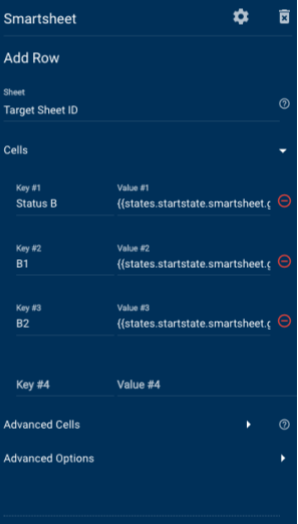
In this workflow, the Add Row module is set up to bring only the data from columns you specify into a new row in your target sheet. You must use data references from the Get Row response to bring your source row's data into the new row on the target sheet.
For this example, we don't define Advanced Cells or Advanced Options for the new row. Learn more about the other options for adding rows.
- In the Sheet field, paste your target sheet ID.
- Expand Cells.
- Set your first column of data to add to your target sheet.
- In the Key #1 field, add the name of a column in your target sheet.
- In the Value #1 field, paste the data reference to the column value from your source sheet.
- Open the Run Log and select the last run.
- Navigate to Smartsheet: Get Row > row > cells.
- Hover over the column name you want to copy data from and select the three dots menu.
- Select Copy Data Reference.
- Go to the Add Row module and paste the reference in First Value.
- Repeat for Key and Value fields for as many columns as you want copied to the target sheet. In this example, we are choosing to move three columns in our source sheet to the target sheet:
- Save the workflow.
Test the workflow
In your source sheet, start with a row set to In Progress. In your target sheet, keep its rows blank. Here are images of how your source and target sheets should look.
Source sheet:

Target sheet:

To test the workflow
- In the source sheet, change the trigger column (Status A) to Complete.
- Save the sheet.
Once the Bridge workflow runs, the target sheet will have a new row with only the specific column values mapped:
