Applies to
Resource Management
Capabilities
Who can use this capability
Resourcing Administrators and Portfolio Editors can lock and unlock time reports for any projects. All other permissions can lock and unlock time reports for projects that they own.
Lock time entries
When you lock time entries, it prevents people from making unnecessary edits to project hours.
In Resource Management, you can do the following:
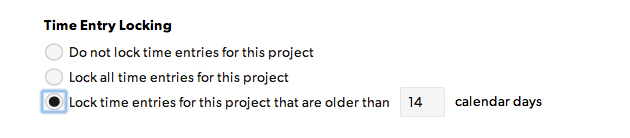
- Lock all time entries for a project
- Automatically lock time entries after a set number of days
You’ll also have time to review and approve time entries before you lock them, especially when you choose to automatically lock them after a certain period.
Set hours to lock automatically
- Go to the project page, and select Project Settings in the time entry locking section.
- Select the option you want to use.
Brandfolder Image
Communicate with your team when you plan to lock hours for projects, so they can confirm their time before. Once a time report is locked, only a Resourcing Admin or Portfolio Editor can unlock it.