USM Content
Submit a document for review
- Open/edit the document.
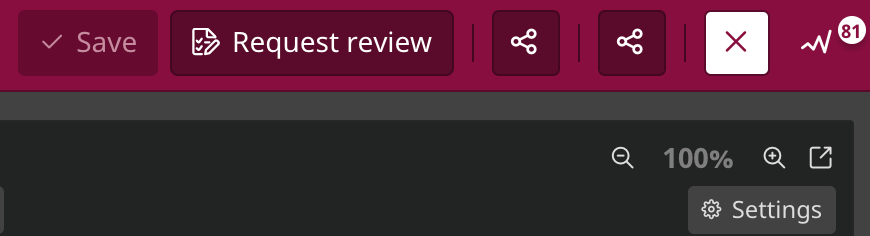
- Select Request Review in the top navigation bar.
Brandfolder Image
Check the status of a request
Select Reviews, located in the left-hand navigation menu. Switch to the relevant tab from - Awaiting Review, Changes Requested, or Approved. If you’re unsure of the status of a request, you can select the All tab to view all review requests. To find a specific review request, you can:
- Filter by teams to show requests connected to a particular team.
- Filter by Tag to show requests related to a team categorized with a specific tag.
- Sort by most recent or oldest. The date of the most recent request determines the most recent or oldest reviews. If a request has been submitted for approval multiple times (for example, after someone requests a change), the latest date will be used for sorting purposes.
- Switch to grid or list view. Grid view contains large thumbnails for viewing designs at a glance, whereas list view presents your requests in a list format, making it perfect to view more requests simultaneously.
You can also view the request's status on the document within a Project.