Bill rate is the rate used to bill your customers.
Create the default bill rate matrix
The default bill rate applies to everyone in your organization. You can add exceptions for specific roles or disciplines. Roles or disciplines with no set bill rate use the default rate. When the discipline and role are assigned to a person, the system will automatically apply the corresponding bill rate.
First, you need to assign roles and disciplines.
- Open Account Settings.
- If you are working in Resource Management in Smartsheet, select the kebab menu in the top right corner, then select Account Settings.
- If you are working in standalone Resource Management, select Settings > Account Settings.
- Select Bill Rates.
- Use the + Add Discipline and the + Add Role option to create the rows and columns for the bill rate matrix.
- Select the field where the role and discipline intersect to enter the appropriate bill rate amount.
- Select Save.
If an entire discipline or group of roles uses the same rate, you can specify that by building out only one row or column.
Project specific bill rates
When you create a project, you can create custom bill rates for that project that override the default bill rates. Open the project settings page to create or modify bill rates for that specific project. You can choose to apply increased rates to the whole project or to specific phases.
Person specific bill rates
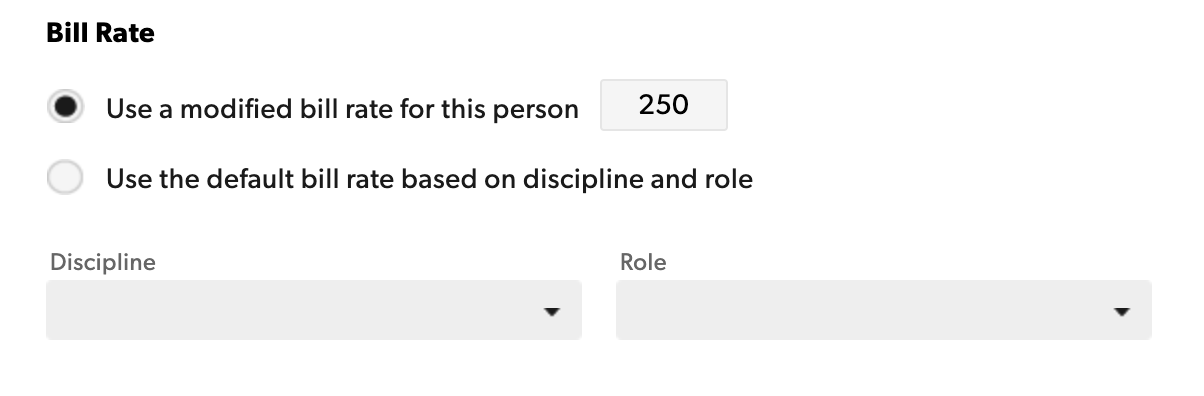
Rates from the bill rate matrix can be overridden by a rate specified within a person’s profile.
- On the People page, select the person's name who you want to edit.
- Select Edit Profile.
- In the bill rate section, select the option for a modified bill rate and enter the appropriate amount.
When someone changes a role or bill rate, change their profile settings. Their rates will update on all new projects; existing projects stay the same.
Because bill rates are typically tied to contracts, rates are not automatically updated for existing projects when someone is promoted. Resource Management assumes you will still bill them out at the old rate for the remainder of the project.

