Set watermarks on individual assets or entire Brandfolders.
USM Content
Watermark a Brandfolder
If you apply a watermark to the entire Brandfolder. The watermark and all associated attachments are displayed on the asset.
This feature adds a watermark to prevent anyone from copying or making screenshots of images or videos, while still allowing trusted users to download the original asset.
Add a watermark
- Navigate to Settings > General Settings > Advanced.
Find the Watermark option and enable it.
This brings up the option to Drag file(s) here or click to browse.
- Drop the file in the box or select it and browse for the file you want to use as a watermark.
- Select Update.
Remove a watermark
1. Navigate to Settings > General Settings > Advanced.
2. Find the Watermark option and deactivate it.
Watermark an asset
You can add a custom watermark at the asset level. The watermark and all associated attachments are displayed on the asset.
Watermark images
This feature adds a watermark to prevent anyone from copying or taking screenshots of images or videos, while still allowing trusted users to download the original asset.
The watermark appears for users viewing the asset in Brandfolder or public links, but disappears when the asset is downloaded. This is because this feature doesn't alter the original asset.
Brandfolder only supports this watermarking in JPG, JPEG, PNG, MP4, MOV, and HEVC files.
- Open the asset modal and select Edit.
- Select the Advanced tab.
You see Custom Watermark and the option to Drag file(s) here or click to browse.
- Drop the file in the box or select it and browse for the file you want to use as a watermark.
A transparent background and similar dimensions to the asset provide the best watermarking results.
- If your asset is an image, select the position where you want the watermark to appear: Bottom Left, Top Left, Bottom Right, or Top Right. If your asset is a video, it's automatically centered.
Select Save Changes.
Upon refreshing your screen, you see that the asset includes a watermark.
Brandfolder Image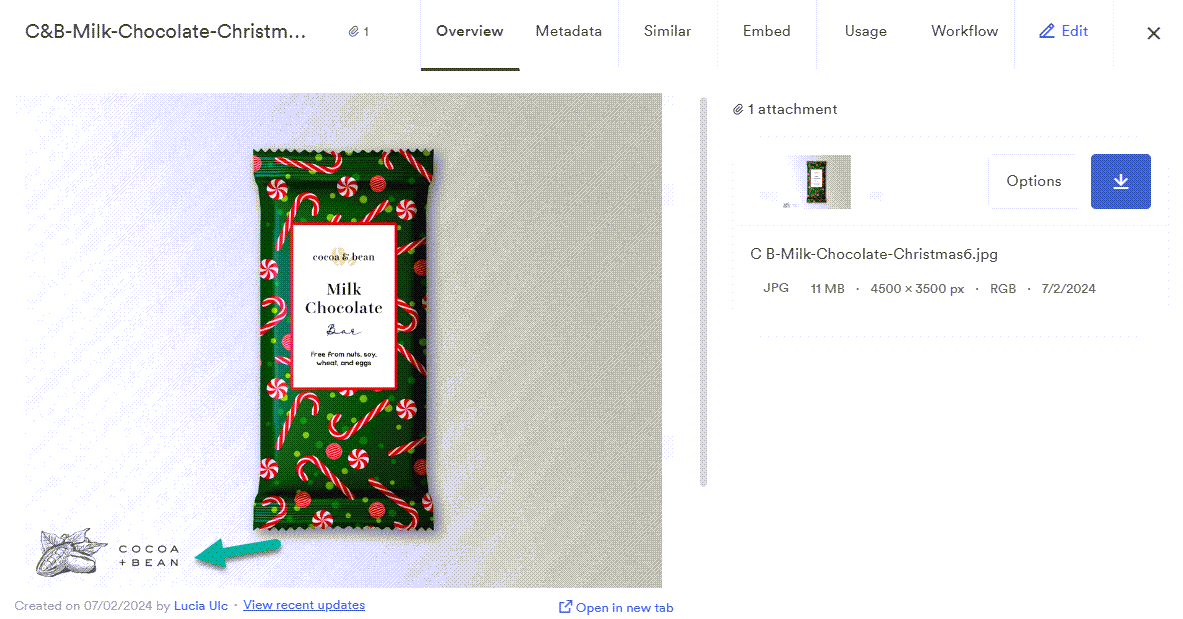
Watermark videos
This works as a video editing tool, creating a permanent watermarked version of the original video. It doesn't change the original asset; it creates a new file with the watermark.
The watermark doesn't appear on the thumbnails of the original video. It's only visible if you view or play the newly generated watermarked video.
Brandfolder only supports watermarking in MP4, MOV, and HEVC files. When a user downloads the file, the watermark remains.
- Open the video's asset modal.
- Within the Overview tab, select Options.
- Select Advanced Editor.
- Under Watermark Image, select Click to upload watermark.
- A new modal appears, allowing you to drag and drop or browse for a watermark.
- Select Upload 1 file.
- Select the height, opacity, and placement.