This article will walk you through the different types of blocks available in a Brandguide.
Pages
The highest organizational level of a Brandguide. Pages add up to make Brandguides.
Add pages
- Navigate to the Pages option in the sidebar.
- Select the Add page button.
- Name the page, and set the Slug.
- Select, Save, and create page.
Delete pages
Select the trash icon next to the page you want to delete in the Pages and Sections flyout. If a page is deleted, the action cannot be undone, and blocks and sections housed within the page cannot be recovered.
Sections
Sections are an organizational level of a Brandguide that is nested within pages and consists of blocks.
The Sticky Navigation bar and Collapse Page Sections options are automatically toggled on for your Brandguide. You can adjust these inside the Pages & Sections settings towards the bottom.
Blocks
Blocks are nested within sections. You can locate blocks in the block flyout on the left-hand side. Blocks are Brandguide components like images, text, color, and code that live in the canvas area as content.
Add blocks
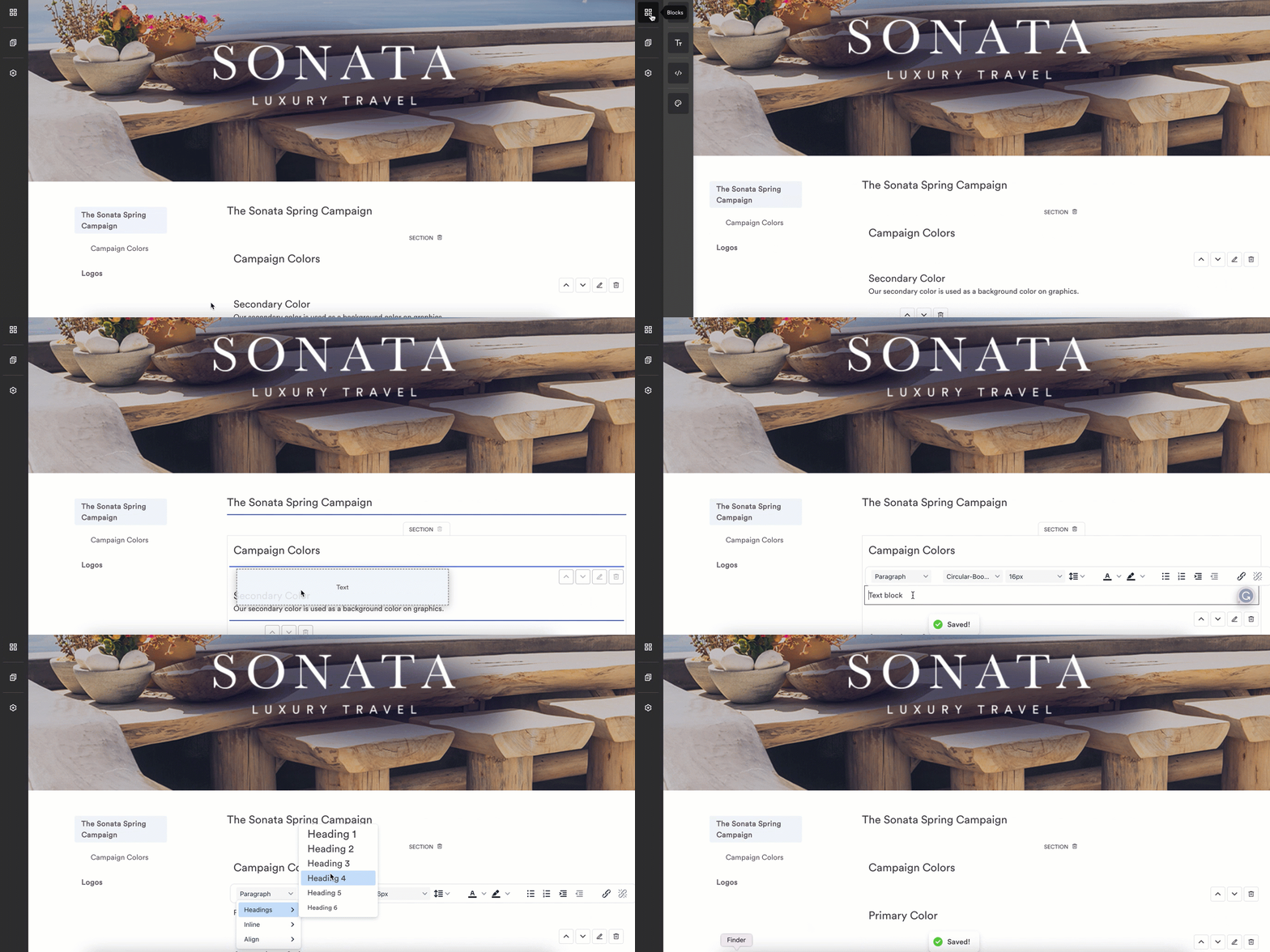
- Navigate to the left-hand sidebar and select the block option.
- This will produce a flyout with images, text, code, and color block options. Content that you can add will have a dotted line around it.
- Select the block and drag it into the canvas area. Purple lines on the canvas indicate an approved drop zone.
- Release the click to drop the block into the canvas.
Delete blocks
Select the trash icon on the block. When you delete a block, it can’t be recovered.
Rearrange blocks
You have two options:
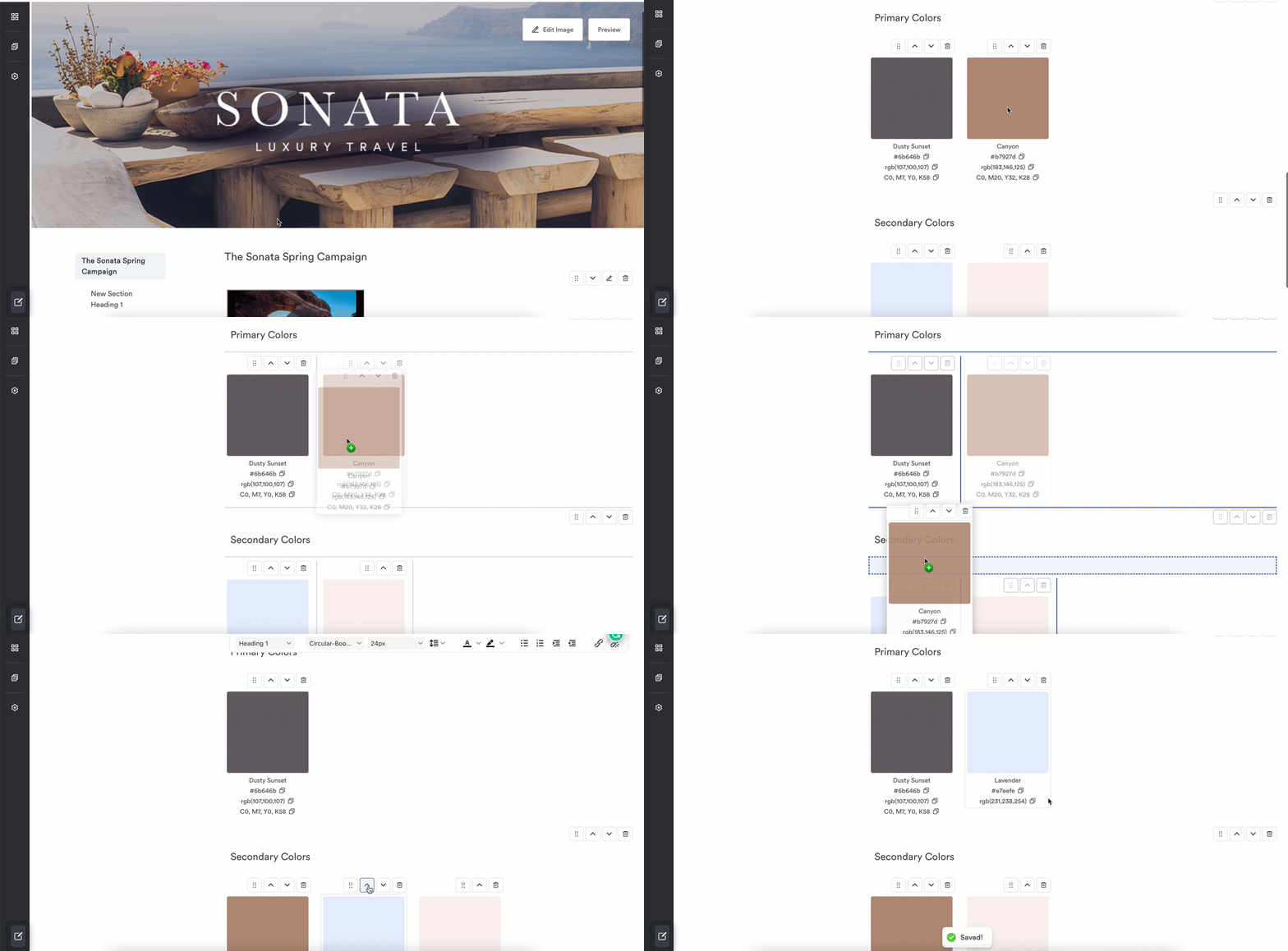
- Drag and drop the block somewhere else on the page.
- Use the arrow to the right of the block content to move the block up and down the page.
Image blocks
Image blocks allow you to add Brandfolder content to your Brandguide seamlessly. This means that if an asset is updated in Brandfolder, then the asset will automatically be updated in the Brandguide as well. CDN powers this experience. To promote brand consistency, you cannot upload outside images directly to Brandguide.
Supported image types
- APNG
- AVIF
- GIF
- JPEG
- PNG
- SVG
- WebP
- MP4
- Microsoft Word Documents
- Microsoft PowerPoints
- Microsoft Excel Files
Add images
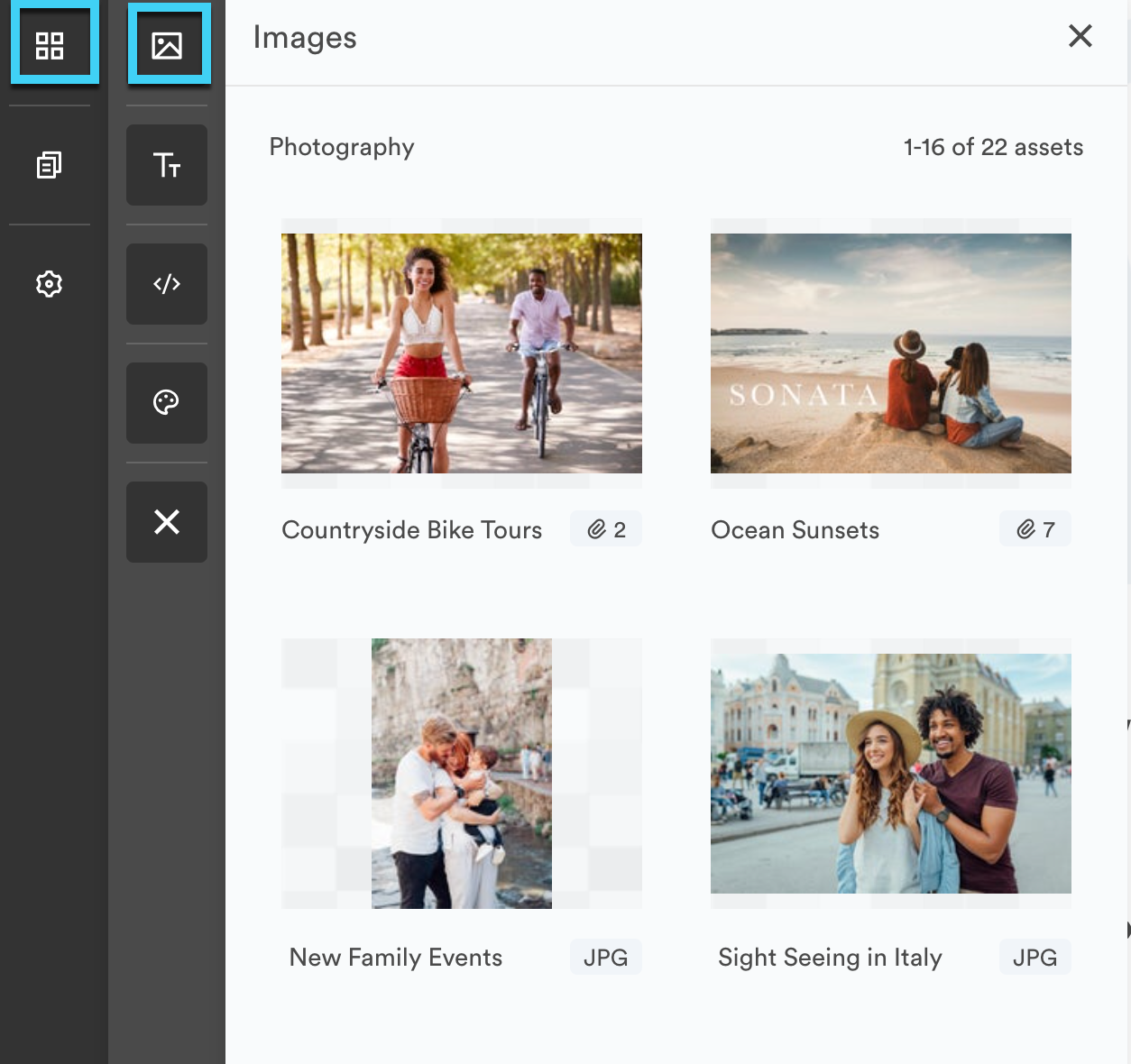
- Select the image icon in the left-hand flyout.
- Another flyout will appear with a Brandfolder experience. The Brandfolder or Collection associated with your Brandguide will appear as a default.
- To choose another Brandfolder or Collection, select the black arrow at the top of the flyout.
- Locate the image you want to use and add it in one of the following ways:
- Drag and drop the image onto the canvas.
- Hover over the image, select the ellipses menu, and choose [+] Place.
- Hover over the image, select the ellipsis, choose view details, and then choose [+] Place.
- Hover over the image, select the ellipsis, choose view details, and then drag and drop the image.
Change image size
- Hover over the image and select the ellipsis.
- Choose view details.
- Open up the placement options.
- Alter the width and height of the image.
- Select Place.
This is currently the only way to manipulate the image size.
Text blocks
Adding text to your Brandguide can be done by dragging and dropping a text block onto the canvas.
Alter text styles
When text styles are modified at the global settings level, they will affect everything at the Brandguide level. When modified at the block level, they will only affect that specific block.
Default text
- Navigate to settings.
- Input your hex code into the text color box.
This will affect any text on the page, including text blocks.
Block-level text
- Hover over the text block.
- A WYSIWYG editor will appear to alter fonts, sizes, text colors, and formatting, such as adding bullets or links to the text.
- Changes made here will only affect the selected block.
Typography
Currently, users cannot upload or sync fonts with a Brandfolder to Brandguide. The fonts available in the dropdown are sourced from Google Webfonts. Advanced users can add third-party fonts using CSS. For more information, visit the Brandguide Customization Using CSS article. The Brandfolder support team will not be able to help you with building your code.
Code blocks
The code block works with standard HTML / CSS. Using this block is only recommended if you have advanced knowledge of CSS. Customer support cannot help you when implementing your code into Brandguide. Any code will be sanitized to prevent XSS attacks. Be aware that our developers may make changes to our Brandguide code at any time that have the potential to impact your CSS and HTML.
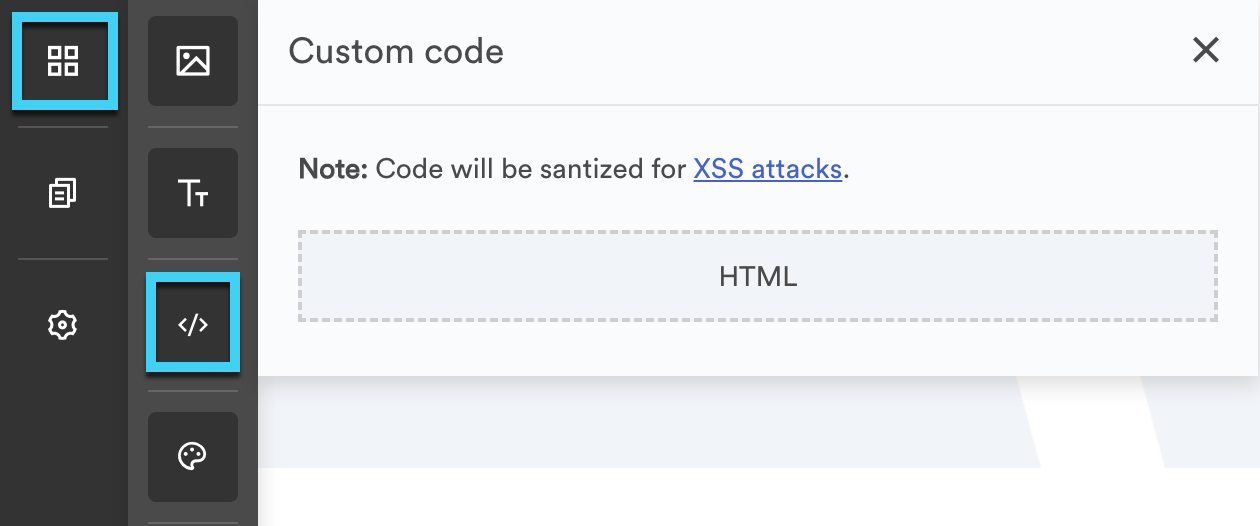
Edit code blocks
When an HTML/CSS block is added to the page, you can add custom code to the Brandguide. HTML will be added to the particular location on the page, and CSS will apply to whatever areas of the canvas it is specified to affect. Once finished with the code, select the eye icon to view changes.
CSS can also be edited globally under settings since it is best practice to have those styles set at the top level and cascade down.
Add video using HTML
The flyout image block does not support the addition of video content blocks. However, using the Video embed code, video can be added via custom HTML and video assets from Brandfolder. Customer support cannot help you when implementing your code into Brandguide.
- Open the asset modal for the video.
- Navigate to the Embed tab.
- Locate the Video Embed Code and select Copy Link.
- Paste the code into the HTML block.
Sanitize code blocks
Some code and elements within it will be sanitized for security purposes against XSS attacks.
Javascript is not permitted.
Delete code blocks
Deleting code blocks will remove the block and all code written within the block. CSS written at the global settings level will remain unless edited in the settings flyout.
Move code blocks
Moving the code block after HTML and CSS have been written has the potential to break the block or the intended effects of the code. For best results, write the code after the position of the blocks has been set.
Color Blocks
Adding color blocks to your Brandguide can be done by dragging and dropping the color onto the canvas.
Color sources
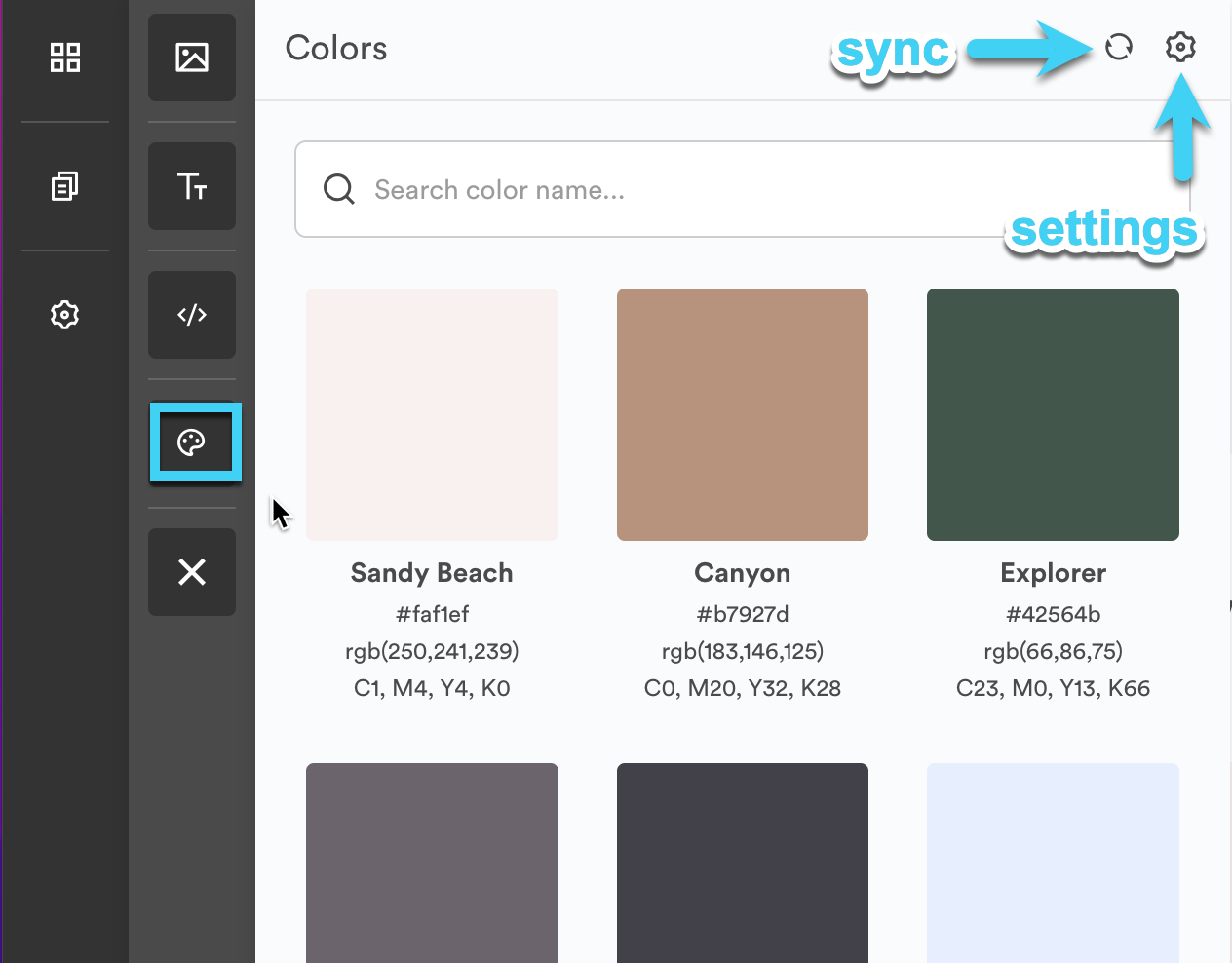
The color block is sourced from the Brandfolder or Collection associated with the Brandguide. If no colors appear in the Brandguide, none have been added to the Brandfolder or Collection. To add colors, add them as an asset in the Brandfolder.
Sync colors
When a change is made to the colors at the Brandfolder level, the change will also automatically reflect within the Brandguide. If a change is made in Brandfolder and the difference is not reflected in Brandguide, you can manually sync by selecting the circular sync button at the top right of the color flyout.
Color modes
You can alter which color modes appear in both the flyout and the canvas.
- Select the settings icon in the top right-hand corner of the color flyout.
- Select the checkboxes to display HEX, RGB, and CMYK, and select Save.
- A copy icon will appear next to the color value.