Applies to
- Brandfolder
Capabilities
Who can use this capability
- Owner
- Admin
View only assets
View only assets are a way for Admin users to have complete control over who downloads an asset wherever the asset exists (Brandfolder, Collection, or sharelink).
Set an asset as view only
1. Select the assets that you desire to set as view only.
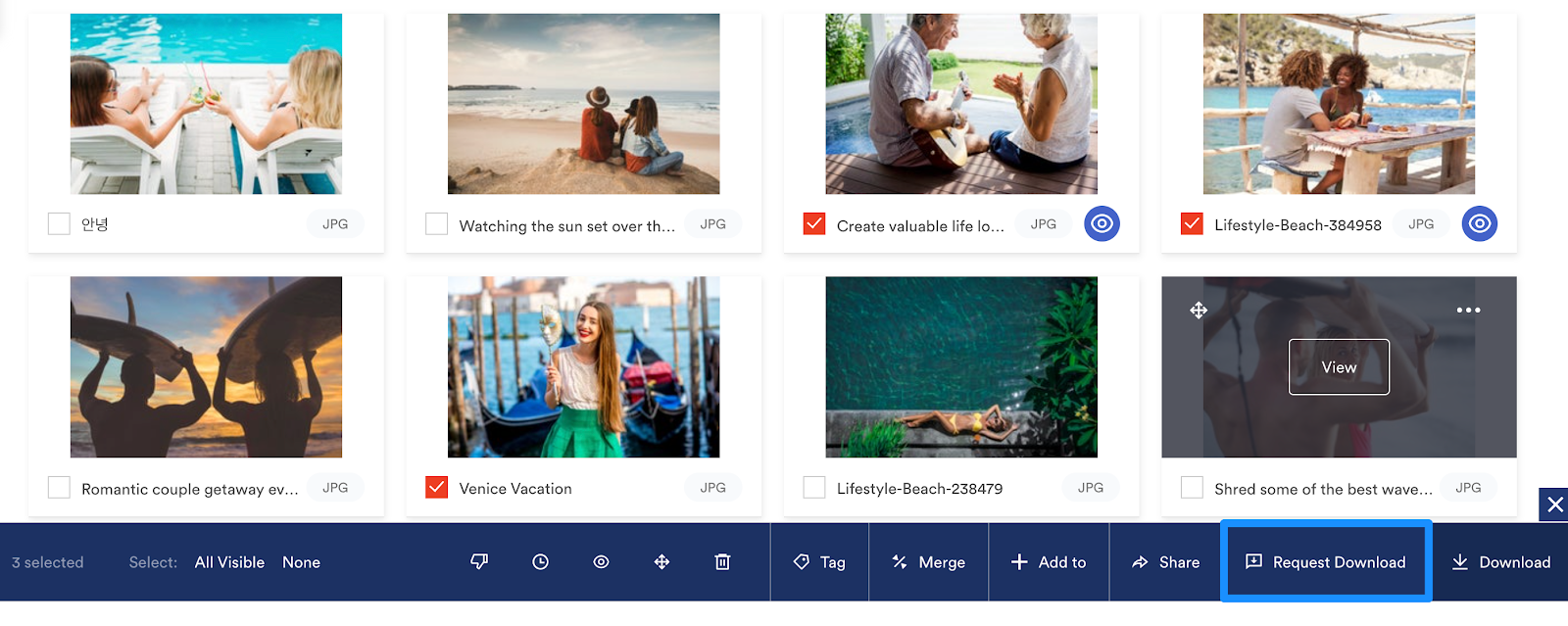
2. The bulk toolbar will appear. Within the bulk toolbar, select the Mark as view only icon, that looks like an eye.
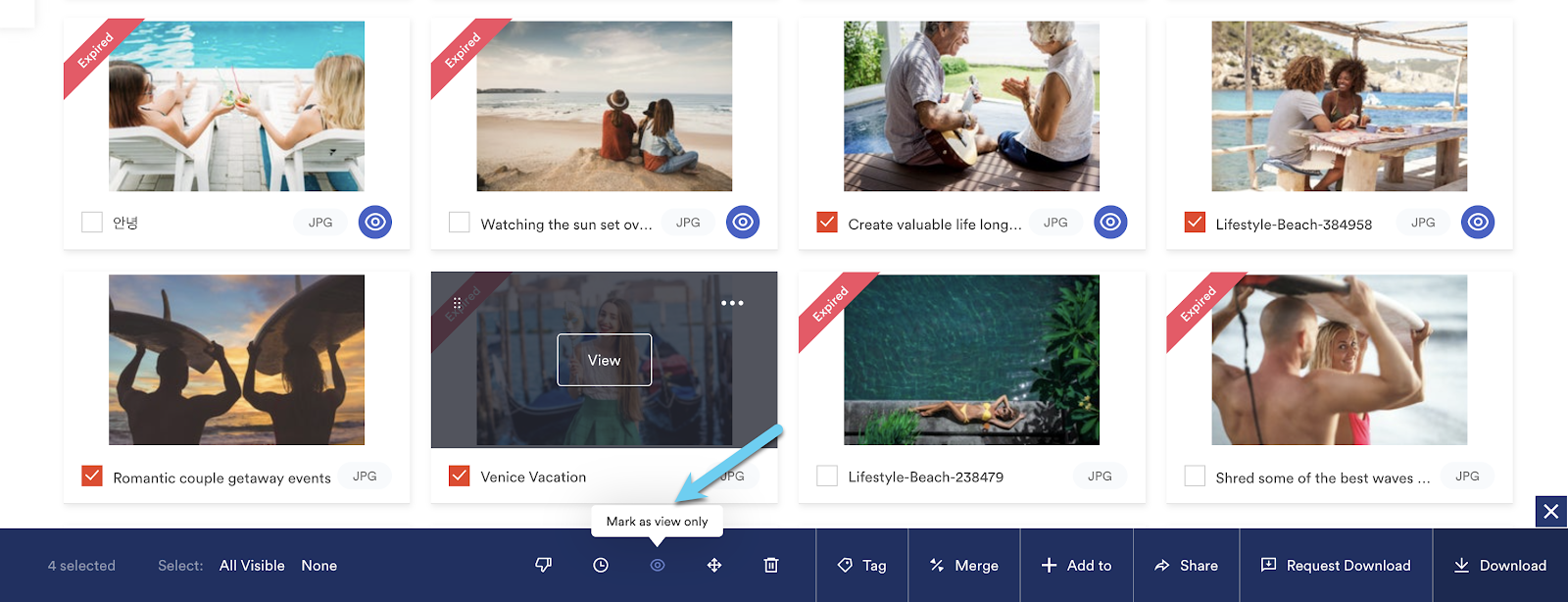
If you don't see the view only option on the bulk toolbar, contact Brandfolder support to find out if your plan includes this feature.
3. A new confirmation modal will appear. You will be prompted to confirm the view only asset status change by selecting Save Changes.
The asset is now in a view only state. This means that the asset is marked as view only everywhere that it exists. This ensures that the asset cannot be downloaded anywhere and that the rights for that asset can be managed appropriately via the request download flow.
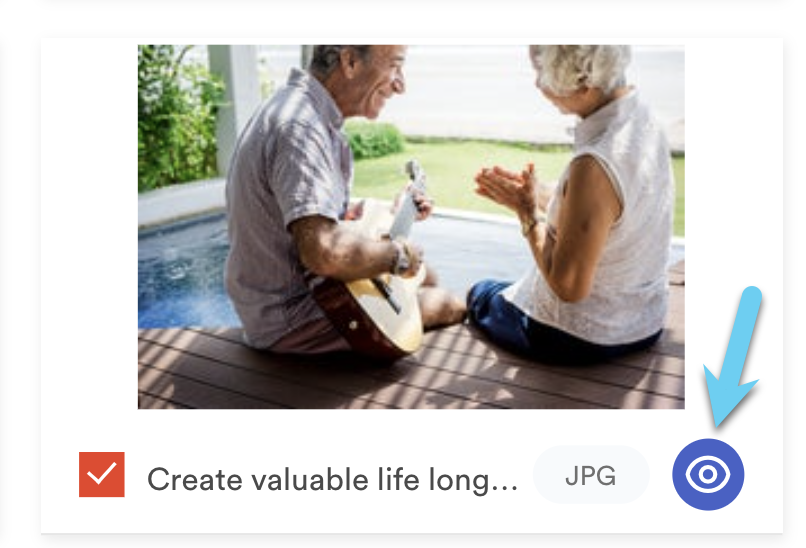
Once in the view only state the asset will appear with a view only icon and users will have to make a request to download the asset. Requests for download go to a Brandfolder Admin for approval, which will show up in an email and the notifications center, within My Profile > Notifications.
View only asset experience
All users, including Brandfolder Collaborators, Collection Admins, and Guests, will not be able to download view only assets. However, they can select view only assets and request to download them. They will then be prompted to fill out a form with their name, email, company, and usage details.
If a user selects a mix of view-only and downloadable assets, they will be notified that one or more of the selected assets are view only and won't be included in the download.