Applies to
- Brandfolder
Capabilities
Who can use this capability
Owners of an account can view their subscription details.
Manage your Brandfolder subscription
Owners of the account can view their subscription details to manage their limits. Admins and Collaborators will not be able to see this option.
- From the Organization level landing page, select the settings button in the top right-hand corner and then choose Manage Subscription from the dropdown.
- This will bring up the Subscription page.
Subscription overview
On the left side of the page, you will find an overview of your subscription, including plan type, support level, pricing package, and how long your account has been active.
Resource utilization
At the top of the page, you will find boxes that track the utilization of resources and storage. Depending on your account, the following will be tracked: Storage, Advanced Video, CDN, Brandfolders, Assets, Collections, Workspaces, Brandguides, Administrators, Collaborators, Video Streaming, Templates, and Portals.
Video streaming details
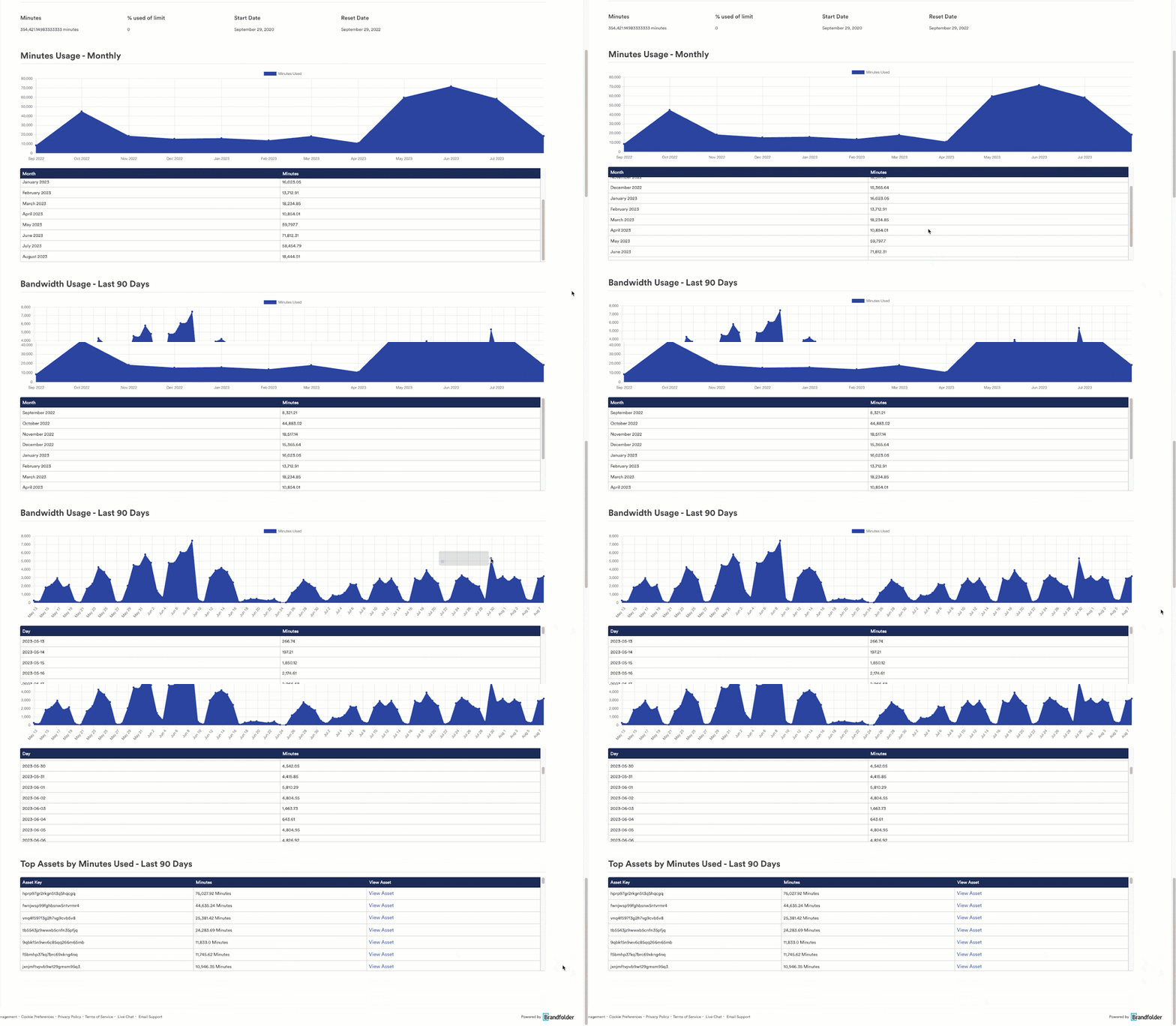
As part of your subscription, you receive a set number of video streaming minutes. Select Video streaming details, here you will see the minutes streamed, the % of limit used, the start date, and the reset date. You can also see minutes usage by month, bandwidth usage in the last 90 days, and top assets by minutes used in the last 90 days.
The minutes usage by month shows data beginning at the reset date until the current day.
The bandwidth and top assets by minutes used charts show data from 90 days ago until the current day. However, if the reset date is within 90 days, then the data will start there instead.
CDN usage
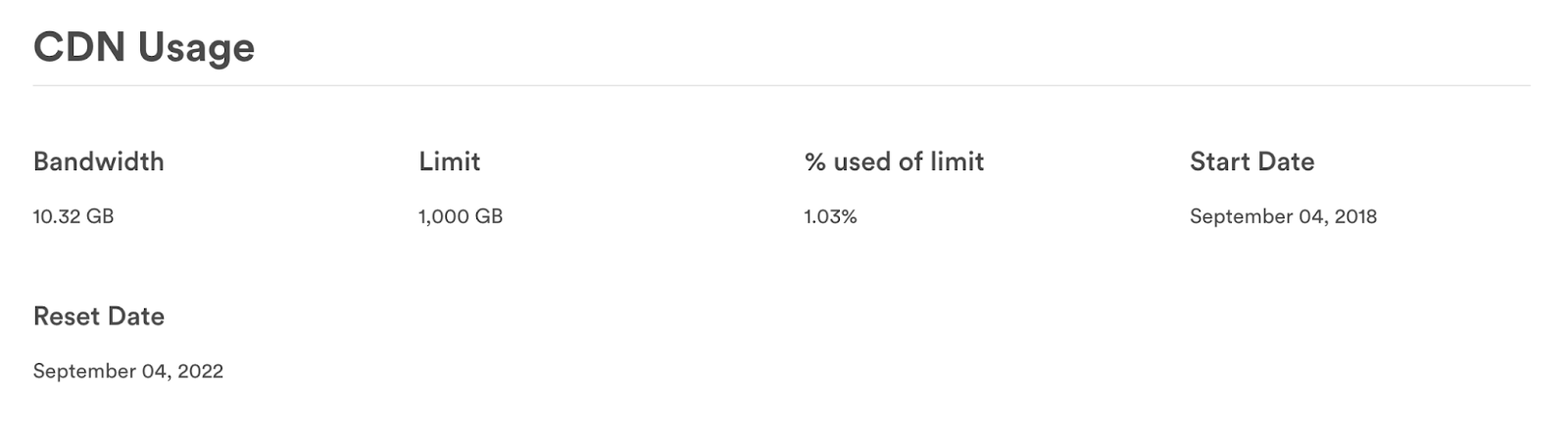
Account owners can see additional details on CDN usage by selecting View usage in the CDN box.
On the CDN usage page you will find your overall bandwidth, limit, % used of limit, and start and reset date. The year start date is the “subscription_start date”. This page also includes information on the following:
- Bandwidth Usage - Monthly
- Bandwidth Usage - Last 90 Days
- Usage by Referrers - Last 90 Days
- Top Assets/Attachments - Last 90 Days
You can also export a CSV of the data.
Setting limits
On the main subscription page, you can set limits on administrator seats, collaborator seats, and asset storage for each Brandfolder. Enabling limit setting allows large enterprises and Brandfolder resellers/partners to control how they plan limits. For administrator and collaborator seats, limits can be set at the Organization, Brandfolders, Portals, and Brandguides levels. Asset storage usage can be placed on the Brandfolder level.
Brandfolder does not deduplicate users when this feature is enabled. For example, users who are an admin or collaborators on multiple Brandfolders will be counted on each Brandfolder.
To set limits, select Set limits in the Storage, Administrators, or Collaborators box.
This will bring up a new modal where you can view current usage and set limits.
You can adjust limits and then select the Update Limits button.
There are a few things to note when setting limits.
- Must exceed current usage error message. This will appear when you input a limit smaller than currently used. For example, if a Brandfolder currently uses 525 GB, you can’t adjust the limit to 500 BB.
- You allocated less than your current limit. This shows up when the sum of all Brandfolder limits is lower than the organization’s limit plan. For example, if you have 20 Admins, you must allocate each Admin seat. You can’t assign only 15 of them.
- You allocated more than your current limit. This message will display when the sum of all Brandfolder limits exceeds the Organization’s plan limit.
Features
On the main subscription page, below the overview of your utilization of resources, you will find a list of features. Next to each feature, you will see if the feature is enabled, is pending configuration, or is not included in your plan.
Available integrations
At the bottom of the page, you will see an extensive list of all Brandfolder's integrations.