Applies to
Publish your WorkApp
Once you configure the roles, publish the app and add collaborators and stakeholders to each role, so your team can start using the app.
As the app builder you can preview the app to see how people in any given role would view it. For example, if you add a sheet to an app, this sheet is added to all roles in viewer mode, and adds you as owner to these roles. When you view the app for each of the roles, you see this sheet as shown in viewer mode, though you are the app builder/owner.
Once an app is published it's made available automatically on both desktop and on Smartsheet mobile app.
Before publishing your app
It’s a good idea to personalize it using your organization’s branding. To do so, select the paint roller icon .

Select Restore all to default to set all your branding to the default branding options provided by Smartsheet.
Select Edit to help you resize your images or select a new image.
Publish your WorkApp
You can view the publish status of your app under your app name when you have the app opened or in the WorkApps Home 
To publish your app,
- Select the Publish button in the top-right corner.
- Optional: select Manage People to add collaborators to roles in the Add People window. You can also open the Add People window by selecting the collaborators icon
.
- Select the role you want to assign people to, then enter the names (if they are in your contact list), email addresses, and contact groups you want to assign. You can also remove people from this tab.
- Select Add when you’re done.
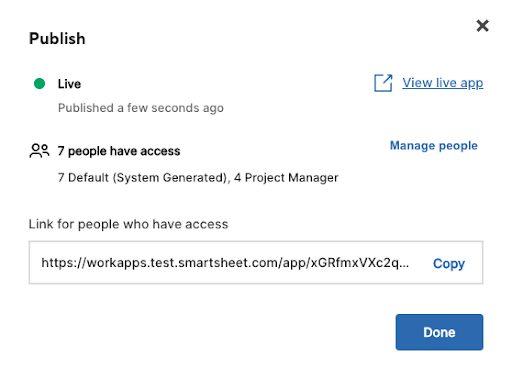
Once you’ve published your app and added people to roles, those people can access the app from Smartsheet or through the app link, which you can find by selecting Publish again:
Once published, you can't unpublish the app. You need to either remove all of the roles, remove people from all of the roles, or delete the app.
If you make structural changes (for example, added/deleted new pages or roles, updated app branding) to the app after you’ve published it, you need to Publish Changes to make those changes visible to end users.
You can view the published changes in the desktop by selecting View Live App or by copying the link in this modal, and pasting it in your browser window.
If you made any page permissions changes such as change a sheet page permission from viewer to editor for a role or added /deleted people from a role, you don't have to republish the app to make the changes available to your end user.