The schedule provides an interactive visual representation of what people are working on, when, and if they’re overbooked.
What's on the schedule?
All project assignments for your organization show on the schedule.
The schedule captures the plan of record (how projects should happen) and should be modified as the project plans change (based on how they happen). The schedule can be viewed in days, weeks, months, or you can zoom in or out to the specific view you need.
Project assignments are color-coded as follows:
- Blue: confirmed projects
- Grey: tentative projects
- Purple: internal projects
- Orange: vacation, sick leave, or other personal events (customizable in Account Settings)
Use the schedule to monitor availability or over-scheduling and adjust individual allocations as needed. Search for people, skills, or roles to determine when to start new projects.
The schedule and the project pages work together. When you change one, the other updates in real-time to reflect the implications of the change.
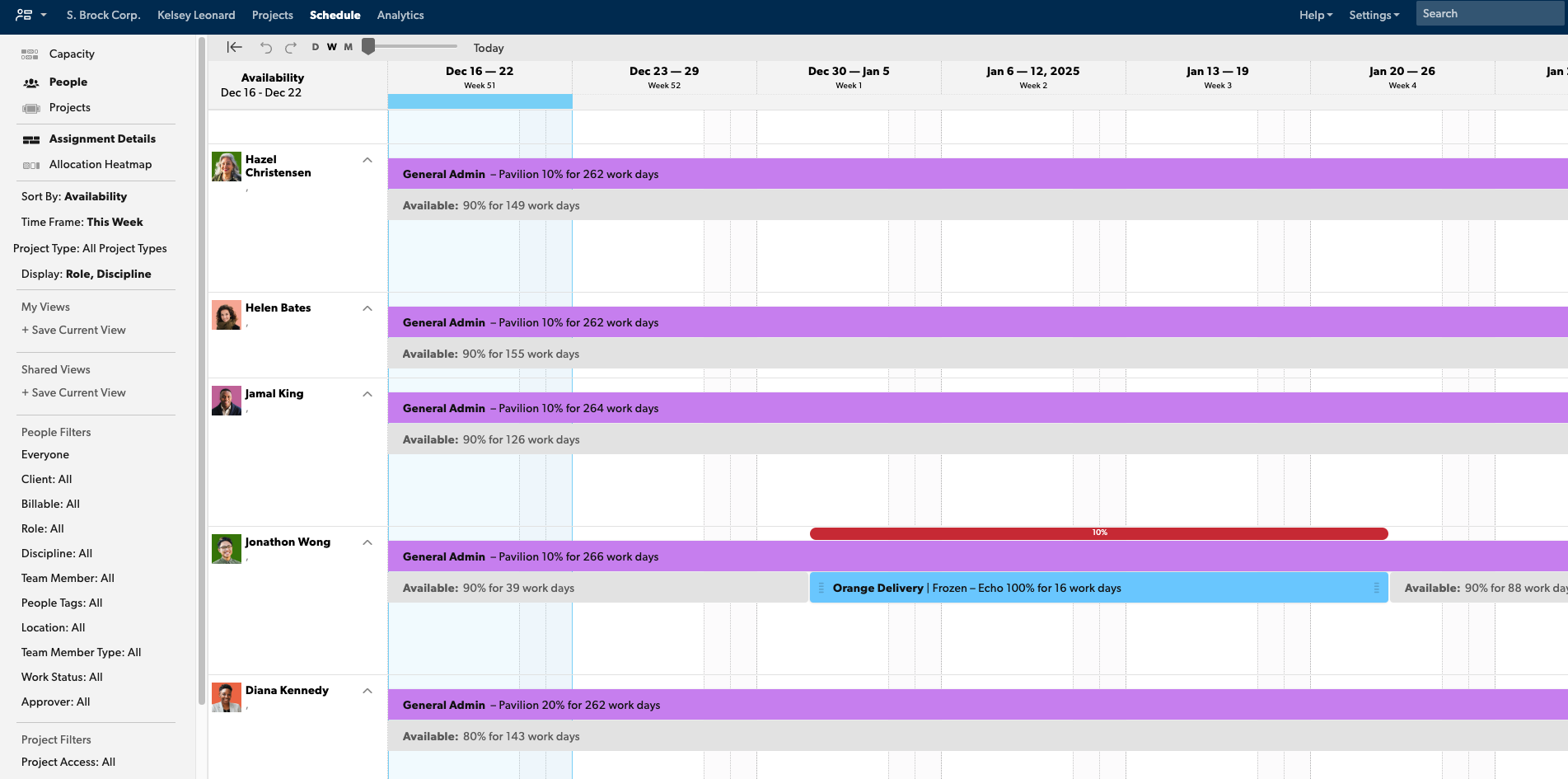
Schedule views
The schedule includes three views:
- Capacity
- People
- Project or Gantt chart
Capacity
Each person has a predetermined availability, set at a 100% capacity target. The schedule shows capacity as light gray under-capacity bars and red over-capacity bars.
- Light gray bars: Show availability and the hours needed to bring the individual up to the correct capacity (whatever 100% means for them).
- Red bars: Show the % of hours overbooked for that person or Placeholder.
Start and end dates impact on capacity
People have zero available hours before and after their first and last work days. For example, if a person's last day of work has passed (e.g., Dec 31, 2020), any projects they're assigned to after that date won't appear on their timesheet or in a time and fees report.
If you remove the last day of work, they again become available for newly created or updated assignments, but this change doesn't automatically apply to existing assignments.
To regenerate existing assignments for the person on the schedule, change their assignment allocation from h/d, %, or total hrs to another allocation format. Their suggested hours will now appear on their timesheet and in your time + fees report.
Gantt view
To see a Gantt-style view of all project timelines, go to project view, then use the dynamic zoom function (the horizontal slider bar on the upper left-hand side). In this view, projects are ordered sequentially by their start and end dates. Projects with recently passed end dates are at the bottom of the screen.
Comparing confirmed time to scheduled time
Assignment updates on the schedule flow to timesheets; however, confirmed time (from timesheets) doesn’t change the schedule. This is so you can compare the actual time (from timesheets) to the plan (the schedule).
Because the schedule is the overall plan, it’s not impacted by any assignments or hours your team tracks ad hoc, such as sick time or additional projects to which the person wasn’t assigned initially.

