The project portfolio shows your complete portfolio of work, across your organization. Select Projects in the primary navigation to see your Project Portfolio.
You can organize your portfolio to display your most important projects and find the status information you need for each project. Select a project in your portfolio to access that project's information via the project page.
From the project portfolio, you can:
Filter projects by: project state, project type, project name, client, tag, and project custom fields
Switch between grid view and list view
Create personal saved views (all permission levels), or shared saved views, accessible across the organization (Resourcing Administrators only)
Working with columns
List View shows project information as a table. In list view you can edit which columns appear and sort projects by column names.
To change your project view:
- Select the List View icon and choose which columns you want to include.
- Select a column label at the top of the column to sort the project list alphabetically or numerically.
Saved views
Use saved views to quickly display the projects and information that matters most to you and your organization.
To save a view for yourself, select + Save Current View under My Views. If you change the view, you can save it again under the same name or give it a new name and save it as an additional view.
Resourcing Administrators can create Shared Saved Views, accessible by anyone in your organization who has access to the project portfolio page.
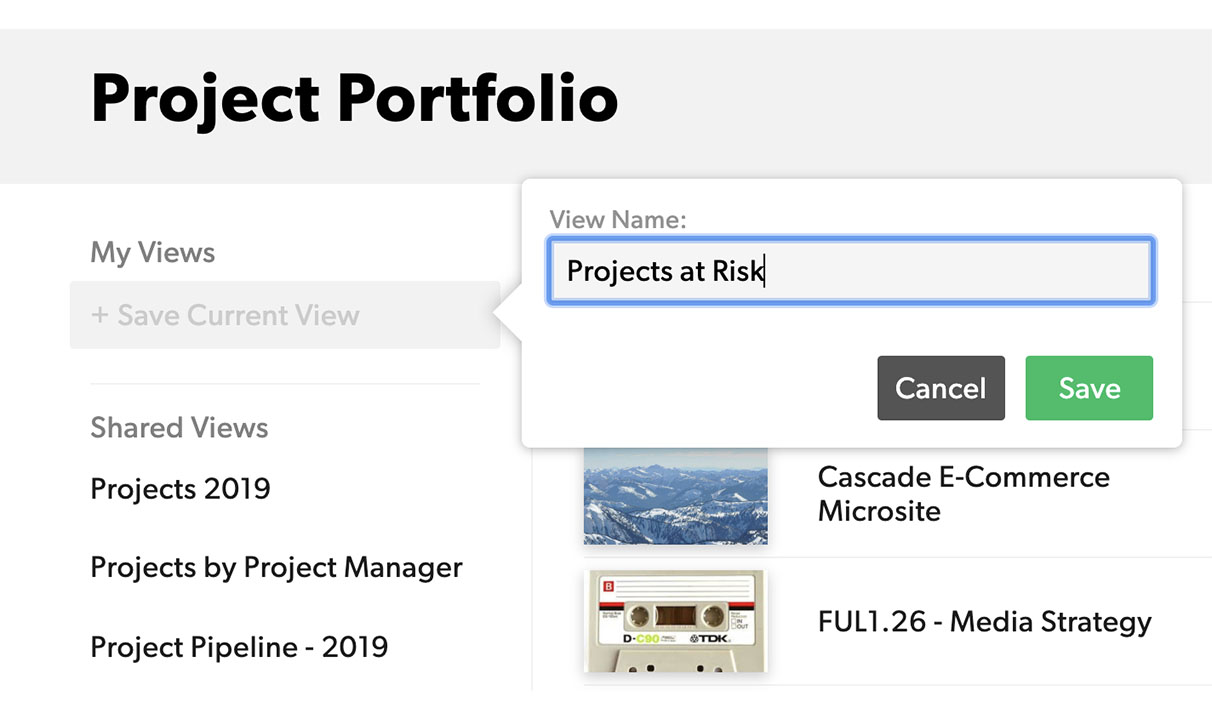
When used with custom fields, saved views can highlight projects that need your attention, display project work is in the pipeline, or projects ready to be archived.

