Once you establish your project sheet columns, you must set up project settings. With Project Settings, you can customize aspects of the sheet, such as working and non-working time, Gantt display settings, and resource management.
Create and work with a Gantt view
Gantt view is a user-friendly way to visualize your project schedule, split into two parts:
- On the left, the grid view lays out your project tasks and details.
- On the right, the Gantt chart outlines your tasks and milestones as horizontal bars and diamonds, aligned chronologically from left to right. Each bar represents the duration of a task, making it easy to see how tasks align and overlap at a glance.
Gantt view also allows you to:
- View dependencies and track the relationship between tasks.
- View your project's critical path.
- Display the % Complete of your tasks.
- Use hierarchy to create summary rows of your project’s details.
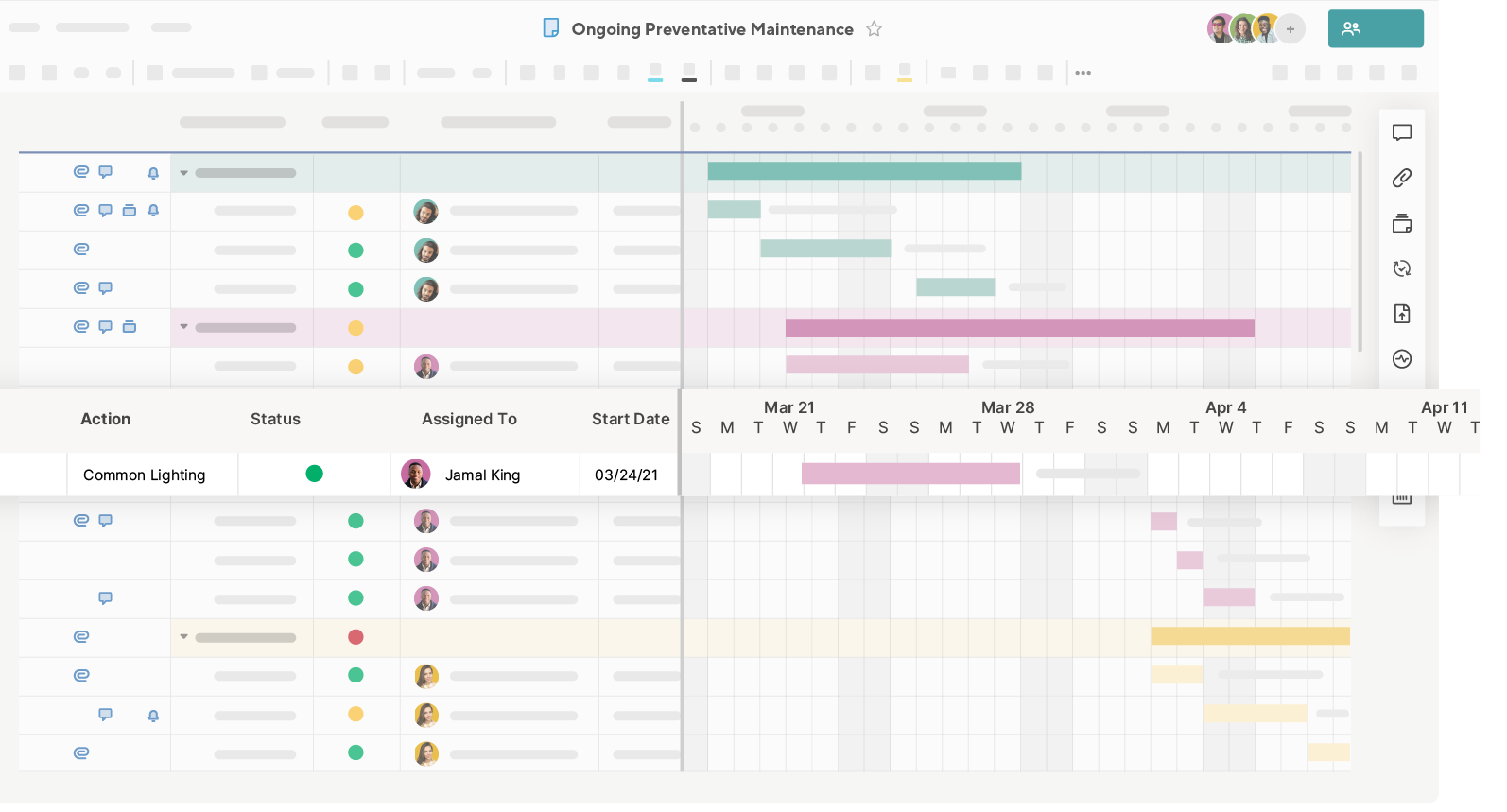
Add a Gantt view
To use Gantt view, your sheet or report must have at least two date columns (not backed by column formulas). The length of a taskbar represents the duration between these dates.
In the toolbar, select Gantt view to switch your view. The chart appears to the right of your sheet’s columns. There is also a divider that separates the grid columns from the Gantt chart. You can widen the display of either section by hovering over the divider and dragging the divider to the right or left.
Gantt view draws a:
- Single-day bar for rows where the start date and end date are the same.
- Multi-day bar for rows where the start date and end date are different.
- Milestone diamond for rows where only the start OR end date is provided.
If dependencies are enabled in your sheet, milestone diamonds are drawn for any rows with a zero-day duration.
Configure your Gantt view settings
Only the sheet's Owner and Admin can modify Project Settings.
Modify your sheet’s Project Settings to configure your Gantt view’s settings and enable dependencies.
To open Project Settings, right-click any column header in the Gantt view and select Edit Project Settings, or select the settings toolbar button in the top right corner of the sheet.
Visualize % complete
You can choose to display a %complete overlay. Choose which column to display the % complete overlay by configuring a % Complete column in Project Settings. Any time you enter a value in this column, you’ll see a shaded bar within the taskbar per the values you entered in the % complete column.
Adjust the Gantt view timescale
This determines the primary and secondary headings in the Gantt view timescale. To modify the headers, select the gear icon in the upper right-hand corner of the Gantt chart and select Gantt Timescale Settings in the Projects Settings dialog.
Use Gantt View
Adjust the Gantt view timescale
The Gantt view has four zoom levels: quarter, month, week, and day. Use the Zoom In or Zoom Out icons to adjust the view.
Save any changes made to the Gantt view timescale display to preserve them during export. These changes appear when exported.
Modify tasks directly from the Gantt view
To change the dates of your task:
- Select and drag the center of a taskbar to move the task to new start and end dates.
- Drag just the start or the end of the bar to change its start or end date (and the resulting duration).
Customize your task bars
You can apply color to the taskbars. To add color:
- Right-click on a taskbar.
- Select Color Settings.
You can also apply color to taskbars automatically by using conditional formatting.
Row hierarchies
You can use row hierarchies in the grid portion of the Gantt view to organize rows into sections or phases. Child rows are displayed as individual task bars in the Gantt chart based on their start and end dates.
If you use hierarchies and turn on dependencies on the sheet, parent rows reflect a summary of their child rows. The parent row values are calculated automatically in the Duration, % Complete, Start Date, and End Date columns; they can't be modified manually. However, if dependencies are off, you can change the parent row values as needed.
Critical path, summary, and driving paths
You can use the critical path, which is the longest sequence of tasks that must be completed on time to stay on schedule and avoid delays. Enable dependencies in your sheet’s Project Settings to use the critical path. Once the critical path is enabled, you can create a filter to view only tasks that are or are not on the critical path.
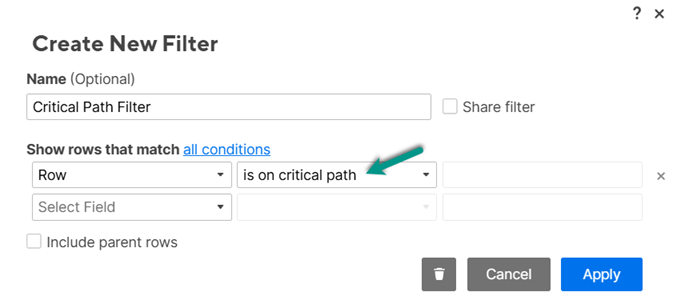
You can also enable the driving path to identify tasks that affect your task’s start date quickly. Additionally, you can activate the summary path to identify the subtasks impacting the end date of their parent summary task.
Use baselines
Use baselines to compare a project’s scheduled times against actual completion. To enable baselines:
- Add Start Date and End Date columns.
- Switch to Gantt View, then select the Baselines button in the toolbar.
Project settings in your sheets
The Resource Management section is only available for Business or Enterprise plans.
You can access Project Settings from the grid view or Gantt view:
- From Gantt view: Right-click any column header in the Gantt view and select Project Settings, or go to the settings toolbar button in the top right corner of the sheet.
- From grid view: Right-click any column header in the sheet and select Edit Project Settings.
Gantt Timescale Settings only appear when editing Project Settings from Gantt view.
Dependency settings
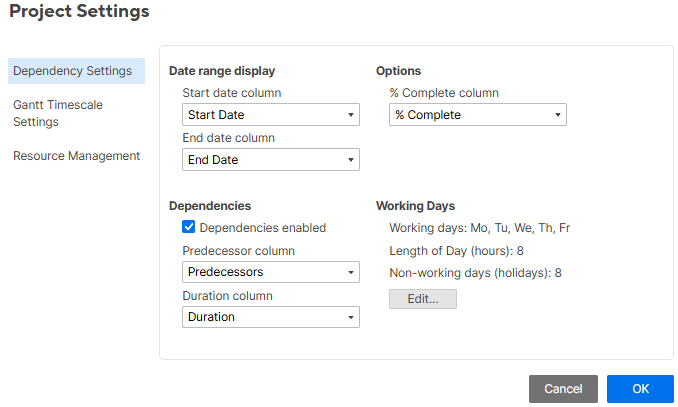
Date range display
Use the Start Date and End Date columns to track the start and end dates.
Gantt view requires a start and end date (not backed by column formulas) to load. However, the timeline view only needs one date column to load when not utilizing project settings. If your sheet includes more than one date column, the Project Settings require both a start and end date.
% Complete column
The % Complete automation is optional. Select the column you want to assign as your % Complete column. This column overlays a % complete indicator within the task bars only for the Gantt chart, allowing you to see automated % complete calculations.
When dependencies are enabled and you are using hierarchy in your sheet, Smartsheet automatically calculates the % complete in parent rows based on the child rows' duration and % complete values. To format values in this column as percentages, select the column header at the top, then select the % icon in the left toolbar.
Dependencies
To enable dependencies, you need to assign Predecessor and Duration columns. If your sheet doesn’t have existing predecessor or duration columns, Smartsheet automatically creates them for you.
- Predecessor: This column creates dependencies between tasks in the schedule.
- Duration: This column automates scheduling a task's start and end dates. It represents the number of working days the task must take to complete.
Enabling dependencies impact a row's start and end dates as it automatically calculates and adjusts these date values based on changes to the row's Duration and Predecessor values.
With dependencies enabled, you can configure working and non-working days, set hours, and exclude specific dates such as holidays. By default, Smartsheet considers each working day to include 8 hours.
Once dependencies are enabled:
- Rows with Duration and/or Predecessor values have their start and end dates calculated automatically.
- The system automatically adds the given duration to the start date to calculate end dates (taking into account non-working days).
- If a predecessor drives a task's start or end date, you can manually change it by clicking the cell and selecting a new date. This overrides the association with the predecessor and removes the predecessor value from the row.
- If a parent row has a predecessor value listed, this dependency relationship drives the start dates for each child row. Removing the predecessor value on the parent row makes child rows editable, so you can change dates manually.
- The start and end dates of tasks that depend on a predecessor aren’t editable from a report, a row update request, or any mobile app. To work around this, manually update a task's start date or duration to update the end date automatically.
See Activate dependencies and use predecessors for more details.
Gantt timescale settings
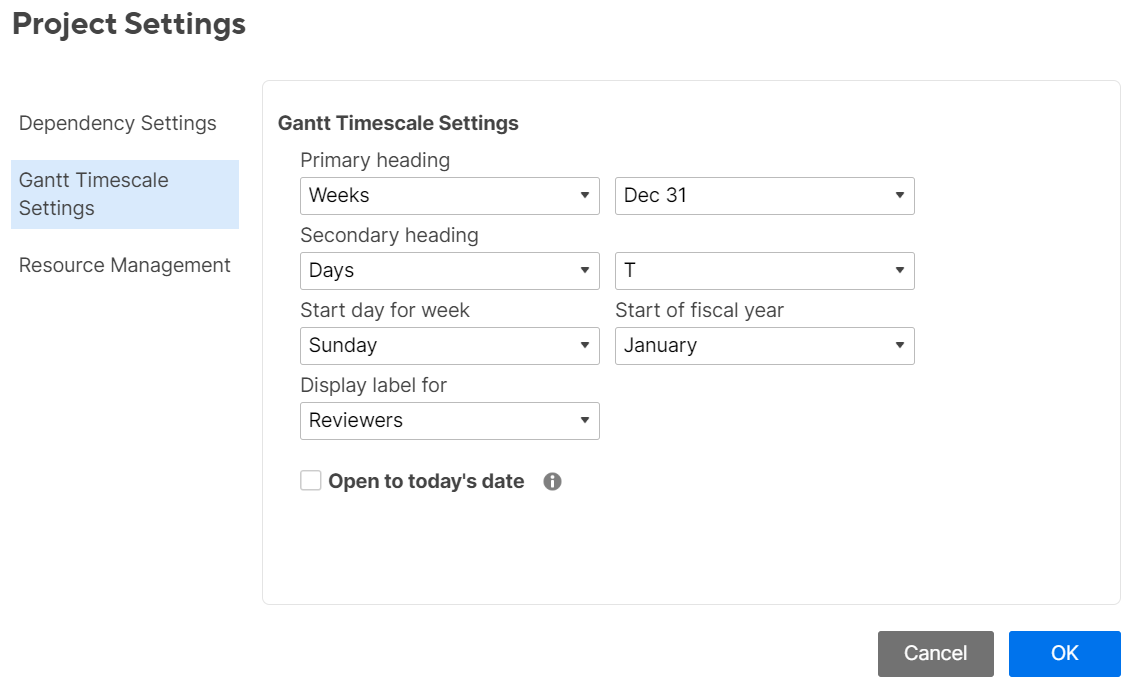
Edit the following timescale settings used in Gantt view:
- Configure the appearance of the Primary and Secondary headings. These appear along the timescale at the top of the Gantt view. Switch between days, weeks, months, quarters, and years, and select the styling of dates.
- Customize the Start day of the week and the month that begins the Fiscal year.
- Choose any column to Display as the label to the right of the Gantt bar. For example, select a contact list column as the display label to see a list of the people assigned to each task next to the Gantt bar.
- Choose whether Gantt view Opens to today’s date.
- This option is only available to the sheet’s Owner and Admins.
- This setting is your preference and doesn't influence how your collaborators view the Gantt view.
- If someone with Editor or Viewer permissions wants the Gantt view to open to today, you can create a report from your sheet. Any user who has access to the report can access the Gantt Timescale Settings to enable the option Open to today's date.
Resource Management settings
Learn more about the Resource Management project settings.
Activate dependencies and use predecessors in sheets
When you activate dependencies:
- Changes in a row’s predecessor's start or end date immediately adjust the row’s dependent dates.
- Adjustments in any two of a row’s Start Date, End Date, or Duration columns automatically calculate the third value.
- Start Date, End Date, Duration, and % Complete roll up to parent rows as summary calculations.
- Parent row values are read-only, as they’re calculated automatically based on values in the child rows.
- You can highlight the critical path in the Gantt view to visualize what drives the overall project duration.
When you activate dependencies, you can't use formulas in the Start Date, End Date, Duration, % Complete, and Predecessors columns.
Activate or deactivate dependencies
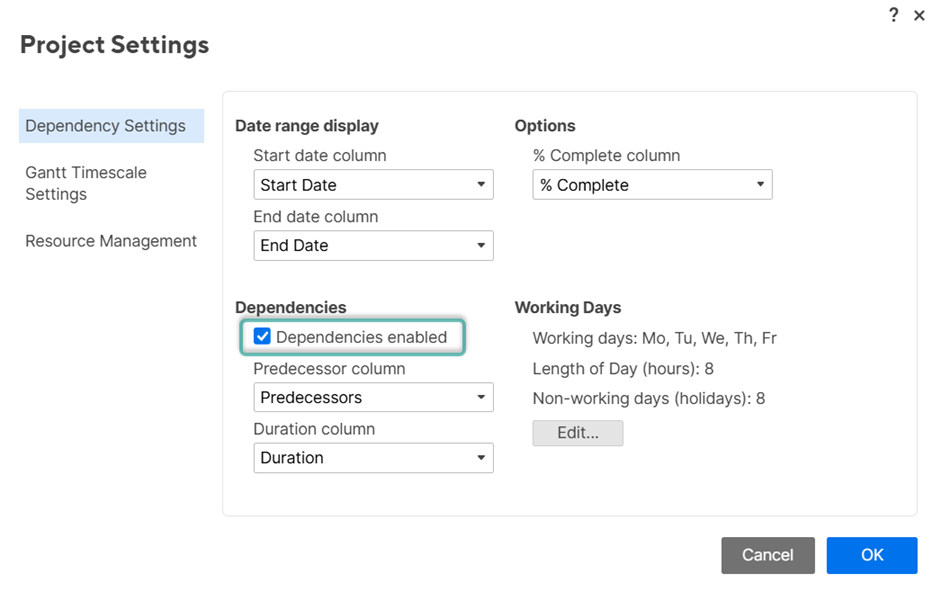
- Right-click any column header in the grid or Gantt view and select Project Settings, or select the settings toolbar button in the top right corner of Gantt view.
- Go to Dependency Settings.
- Select the Dependencies enabled checkbox. Select which columns to use as the Predecessor column and the Duration column.
If you don't have columns set up for this, Smartsheet automatically creates the predecessors and duration columns.
- Select OK.
To stop using dependencies and remove the automation from the sheet:
- Right-click any column header in the grid or Gantt view and select Project Settings, or select the settings toolbar button in the top right corner of Gantt view.
- Uncheck the Dependencies enabled box.
- Select OK.
Duration and predecessors
When you enable dependencies in your sheet and you enter a duration or predecessor value in a row, that row's start and end date populate automatically based on the working day's schedule established in the sheet’s Project Settings.
Duration
Duration is the amount of working time between a start and end date. When you enable dependencies in your sheet, Smartsheet automatically calculates the duration for a row based on its start and end dates. You can also manually enter a row's duration value, automatically updating the row’s end date.
When calculated automatically, your duration returns in days. For other units, enter the duration manually.
You can use different formats:
- Weeks: 2w
- Whole working days: 4d
- Partial working days: 3.5d
- Hours: 7h
- Minutes: 60m
- Seconds: 500s
- Milliseconds: 50000ms
- A combination of hours, minutes, seconds, and milliseconds: 4h 30m
Zero duration creates a diamond shape on the Gantt view, indicating a milestone.
Use elapsed time to ignore nonworking time, including nonworking days and holidays. Lead with an “e” to indicate duration in elapsed time, for example, e3d, e5h.
Keep in mind:
- Parent rows always reflect duration in partial working days.
- If your task takes longer than anticipated, you can increase the duration to extend the end date. This automatically extends the end dates of any dependent tasks.
- When you provide a duration and a start date, the dependency functionality calculates the end date automatically by adding the number in the Duration cell to the start date, excluding any non-working days.
- If you use partial working days, Smartsheet considers the length of working days when calculating the end date.
- You can manually schedule a task to start on a non-working day. The start date is included in the duration but excludes subsequent nonworking days.
Predecessors
You can make a task dependent on another task by typing another row's number in its Predecessor column. The dependent task dates automatically adjust as the predecessor task dates change.
The task dependencies that you create drive the project's critical path. With task dependencies, Smartsheet determines the sequence of tasks that drive the duration of the overall project.
To define predecessors:
- Find the row for which you want to create a predecessor.
- In the Predecessor column, type the row number for the item that must occur first. You can add multiple predecessors by entering the row numbers into the cell and separating them by a comma.
Keep in mind:
- If a predecessor drives a task's start or end date, you can change it manually by clicking the cell and selecting a new date. This overrides the association with the predecessor and removes the predecessor value from the row.
- Due to the parent roll-up functionality, adding predecessors to a parent row in a hierarchy applies the predecessor to all child rows. This dependency relationship determines the start date for each child row and restricts direct changes to those dates in the child rows. To work around this, remove the predecessor value on the parent row to make child rows editable so you can change dates manually.
Edit a predecessor relationship
By default, when you specify a predecessor, a Finish-to-Start relationship is established between items, but you can change that.
Use the Lag field to represent a period of inactivity or overlap between the predecessor and dependent.
For instance, entering 1d into the Lag field for a Finish-to-Start dependency causes the dependents to start a working day after their predecessor finishes.
To schedule the dependents to start before the predecessor finishes, use a negative number to create lead time, for example, -1d.
- Select Edit Predecessors at the column's right of any Predecessors cell.
- Select the relationship Type:
- Finish-to-Start (FS): Start after the predecessor finishes.
- Finish-to-Finish (FF): Finish at the same time the predecessor finishes.
- Start-to-Start (SS): Start at the same time the predecessor starts.
- Start-to-Finish (SF): Finish before the predecessor starts.
- Select a Lag time. You can enter weeks, whole working days, partial working days, hours, minutes, seconds, milliseconds, or a combination.
- Select OK.