USM Content
The key themes of the Smartsheet design system are consistency, scalability, and speed. Our main goal is to make finding the work items you need easier, with less friction.
- Find everything you need with the navigation bar: Quickly navigate to your work, access help, respond to notifications, configure your personal settings, and more — all from the consolidated and always visible navigation bar.
- Home surfaces the things that matter most to you: Smartsheet Home dynamically surfaces your most relevant and time-sensitive work in a single location so you can get more done and make an impact faster.
Understand your Home experience
USM Content
What is Smart Assist?
Smart Assist is an AI chat box at the top of Home. Type a request, or select one of the suggested prompts, to get help building a workspace or finding what you need.
Smart Assist is AI and can make mistakes, so double-check its responses before you rely on them.

Learn more about using Smart Assist in our Conversational AI: Smart Assist and MCP help article.
What are Quick links?
Quick links keeps your most-used items in one place. Pin up to 12 items to keep them at the front of the list, and the remaining slots automatically fill with your most recently accessed or suggested items.
To pin an item to your list, simply select the pin icon in the top right corner of the item card. To pin an item that doesn't show up in your quick links, select the Pin item button in the top right corner and select the item you’d like to pin.

What can I see in Mentions?
When someone @mentions you in a comment or update, it shows up in this section.
Select a mention to open it, or use the Open notifications button to quickly view your notifications panel instead.
Hover over the top right corner of the card to delete the notification.

What does the Top workspace module show?
The Top workspace section shows a workspace you've interacted with, along with the items inside it.

What can I access in Portfolios?
Portfolios lists every portfolio you have access to, along with when each one was created.
Select Browse all to see the full list, or select a portfolio to open it.
If you don't have access to any portfolios yet, this module encourages you to create one, so you can standardize projects and report across related work.
Learn more about portfolios in our Portfolios overview help article.

Access and organize your work
USM Content

Create
Select the Create button to open a menu with multiple options for quickly creating new items, then select the location where you want to store them.
Use the menu to also import content or create new workspaces and portfolios.
- Selecting More options redirects you to the Create page, where you can access templates, start from scratch, or choose a new workspace starting point.
Learn more in Create sheets and other items.
Home
Home includes multiple ways to begin or continue your work in Smartsheet effectively.
- Smart Assist: An AI chatbox at the top of the Home page to help you build your workspace or find what you need.
- Quick links: Organize your frequently used items in one place. You can pin up to 12 items to keep them at the top of the list.
- Mentions: See when a user @mentions you in a comment or update.
- Top workspace: Shows a workspace you’ve interacted with and all of its items.
- Portfolios: Lists all of the portfolios you have access to.
Notifications
Take action quickly on pending tasks or review update requests, approval requests, and other notifications as you work in Smartsheet.
The three-dot menu in the Notifications panel lets you mark all notifications as read, delete them, change your settings, or connect Smartsheet to Microsoft Teams or Slack via the Integrations option.
Search
Search for Smartsheet items or content within those items.
Browse
It contains every Smartsheet item that you own or are shared with. You can organize your Smartsheet items into folders and workspaces and access your WorkApps.
Recents
See your most recently accessed Smartsheet items. You can do the following actions in your Recently Opened panel:
- Search: Look up items by name.
- Pin: Hover over an item and select the Pin icon
 to keep it at the top of the panel. You can pin up to 20 items here. The order in which pinned items appear is based on when you’ve pinned them—newly pinned items appear closer to the top.
- Unpin: Hover over a pinned item and select the Unpin icon. Or right-click the item and select Remove Pin.
- Remove: Right-click the item in the list and select Remove from Recents.
Unpinning or removing an item from Recently Opened doesn't delete it or remove your access to it. You can always access items you own or are shared to from Browse.
Favorites
Add frequently accessed items to Favorites to find them quickly.
Use the search bar in Favorites to find items by their names.
Add sheets, reports, or dashboards to Favorites
- Open a Smartsheet item.
- Select the star icon next to its name.
Add workspaces to Favorites
There are two ways to do this:
- Go to Browse > Workspaces. A list of the workspaces is displayed.
- Select the star icon next to the workspace's name.
Or
- Open an item contained in the workspace.
- At the top of the workspace panel, select the star icon next to the workspace's name.
Add folders to Favorites
There are two ways to do this if the folder lives within a workspace.
- Go to Browse > Workspace.
- Select the workspace that contains the folder.
- Select the star icon next to the folder's name.
Or
- Open an item contained in the folder.
- At the top of the workspace panel, select the star icon next to the folder's name.
Removing an item from Favorites doesn't delete or remove your access to it. You can use Browse to look for any of your items at any time.
Use search to find Smartsheet items
USM Content
You can search Smartsheet items, such as:
- Sheet names
- Report names
- Dashboard names
- Form names
- Rows
- Attachment names
- Sheet summaries
- Conversations
- Folders
- Workspaces
- Template names
- Collections
When searching for form names, you only see those you can access in the underlying sheet.
To find Smartsheet items:
- On the desktop, select Search in the left navigation bar. On the mobile app, select the search bar at the top of your screen.
Enter your search terms in the search box.
If you don’t know the exact name, you can type what you know about the item. For example, you can search for a Marketing document made by John Doe in the last two weeks about the new brand campaign.
Advanced search
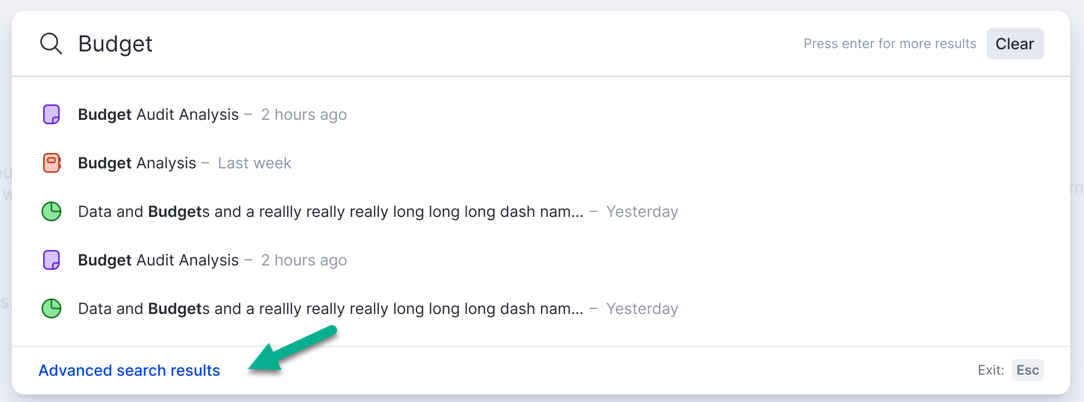
You can use advanced search to get more results or to filter your search results. To access it, select Advanced search results in the search results window, or press Enter on your keyboard.
There, you can refine your search results accordingly:
- Type: Smartsheet file type. Mark the checkboxes to select the item type you are looking for.
- Location: The location of the item.
- Last Updated: When the item was last changed.
- Sort: Sort the search results in ascending or descending order, or by suggested, which is the default Smartsheet sort.
Toggle on Smart filters, which allow you to filter your search query by date and item type directly from the search bar without needing to interact with dropdown filter menus. For example, you can search for the Product Roadmap Dashboard 2025.
Tips for using search
- For an exact match on the search term entered, wrap the term with double quotes: "search term"
ABC-123.4 - To find terms in a specific sheet, open the sheet and then run the search. You can refine your search only to include results in the Current Sheet.
- You can search for attachment titles and descriptions, but you can’t search the contents in attachments.
You can't see row results for sheets that haven’t been opened in the past two years. The sheet name appears in search results, along with attachments, conversations, forms, and sheet summaries. The rows within the sheet don't display.
To make rows searchable again, you can add a column, save the sheet, and then remove the column. Rows may take up to 24 hours to re-index.
- If you haven’t used your account for more than six months, it can take up to 24 hours for your search results to populate. Search is faster once the first set of results appears. Contact support if your search takes more than 24 hours.
Wildcard queries (for example, *project) aren’t supported. You receive results if you use a wildcard query, but the search function ignores the wildcard.