USM Content
"Create with AI" and Smart Assist require a Pro, Business, Enterprise, or Advanced Work Management plan.
MCP-connected AI assistants require a Business, Enterprise, or Advanced Work Management plan.
You can create a workspace, complete with sheets, dashboards, reports, and automations, using natural language from within a Smartsheet-connected AI assistant, such as Smart Assist, ChatGPT, or Claude, or from within the Create with AI interface.
Before you begin
If you're using an external AI assistant, connect it to the Smartsheet MCP Server.
If your AI assistant's access to Smartsheet appears to be blocked, contact your System Admin to activate it in the Smartsheet Admin Center.
Create a workspace using an AI assistant
If you're already working in Smart Assist or a Smartsheet-connected external AI tool, such as Gemini or Copilot, use it to create a structured workspace that matches your goals.
In the AI assistant, describe the intent of your work. For example,
Set up a Smartsheet workspace for a product launch campaign — I need a project plan, a budget tracker, a status dashboard, and automation that alerts me when tasks are overdue.The AI proposes creating a workspace comprising items to match your request. It doesn't build anything yet; instead, it asks whether you'd like to proceed.
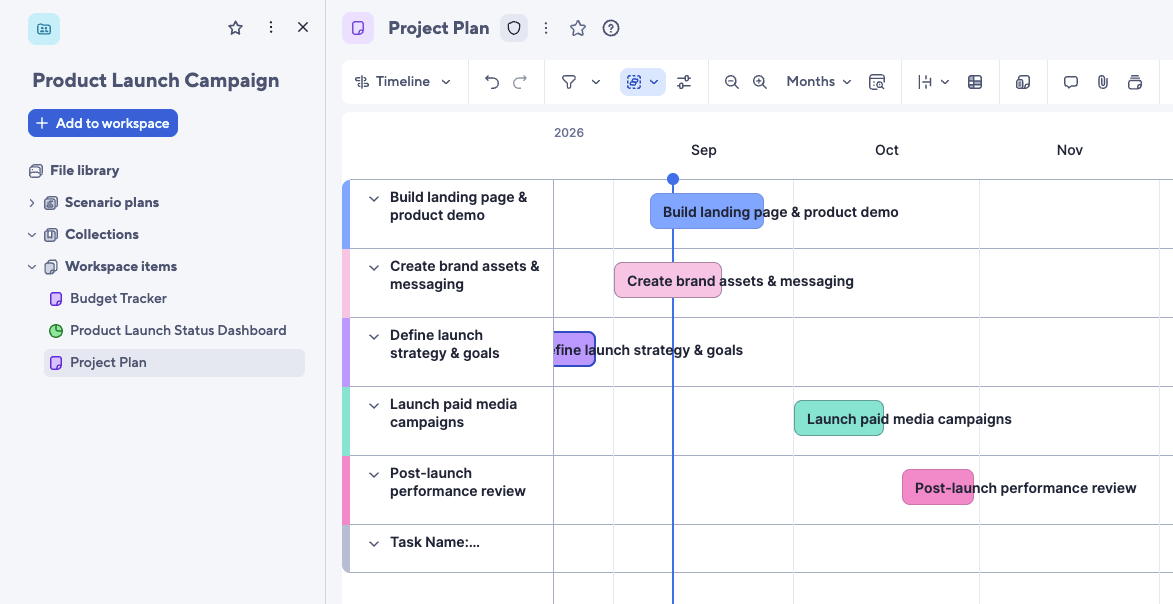
For example, the AI may propose a workspace that includes the following items:- Project plan sheet for tracking tasks
- Budget tracker sheet for capturing budget line items
- Dashboard that gives a visual overview of project progress and budget health
- Automation that emails you when incomplete project plan tasks are past due
- If you like the proposal, reply yes. Otherwise, before proceeding, request refinements until you like the proposal.
The AI builds your workspace and populates it with data. The image below shows a workspace produced by the previous conversation.
Create a workspace using the "Create with AI" interface
If you're new to building projects from scratch or unsure how to describe your goals, use the Create with AI interface.
- On the left panel, select Create > Create with AI. The workspace building page appears.
In the heading called We've selected these examples in [field], select your industry to get industry-tailored prompts. For example, the following image shows the selected healthcare industry.
Brandfolder Image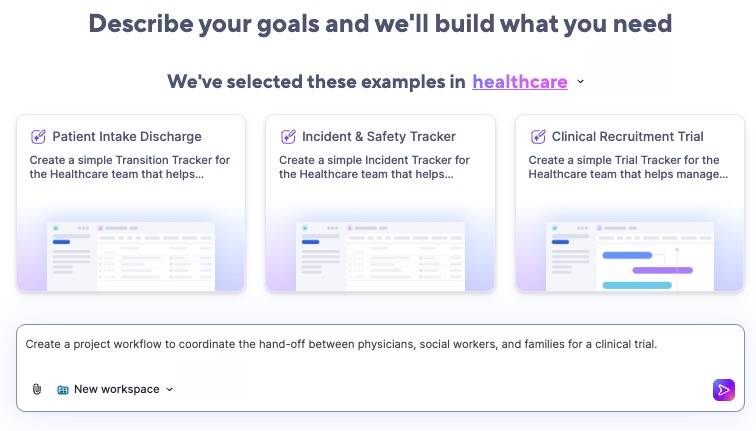
- Either select a suggested workspace type or describe your project in the text field. Be as specific as you can. Include the type of work, your team's goals, and any relevant details about how you track progress.
Select the arrow to send your prompt. A workspace plan and clarifying questions appear.
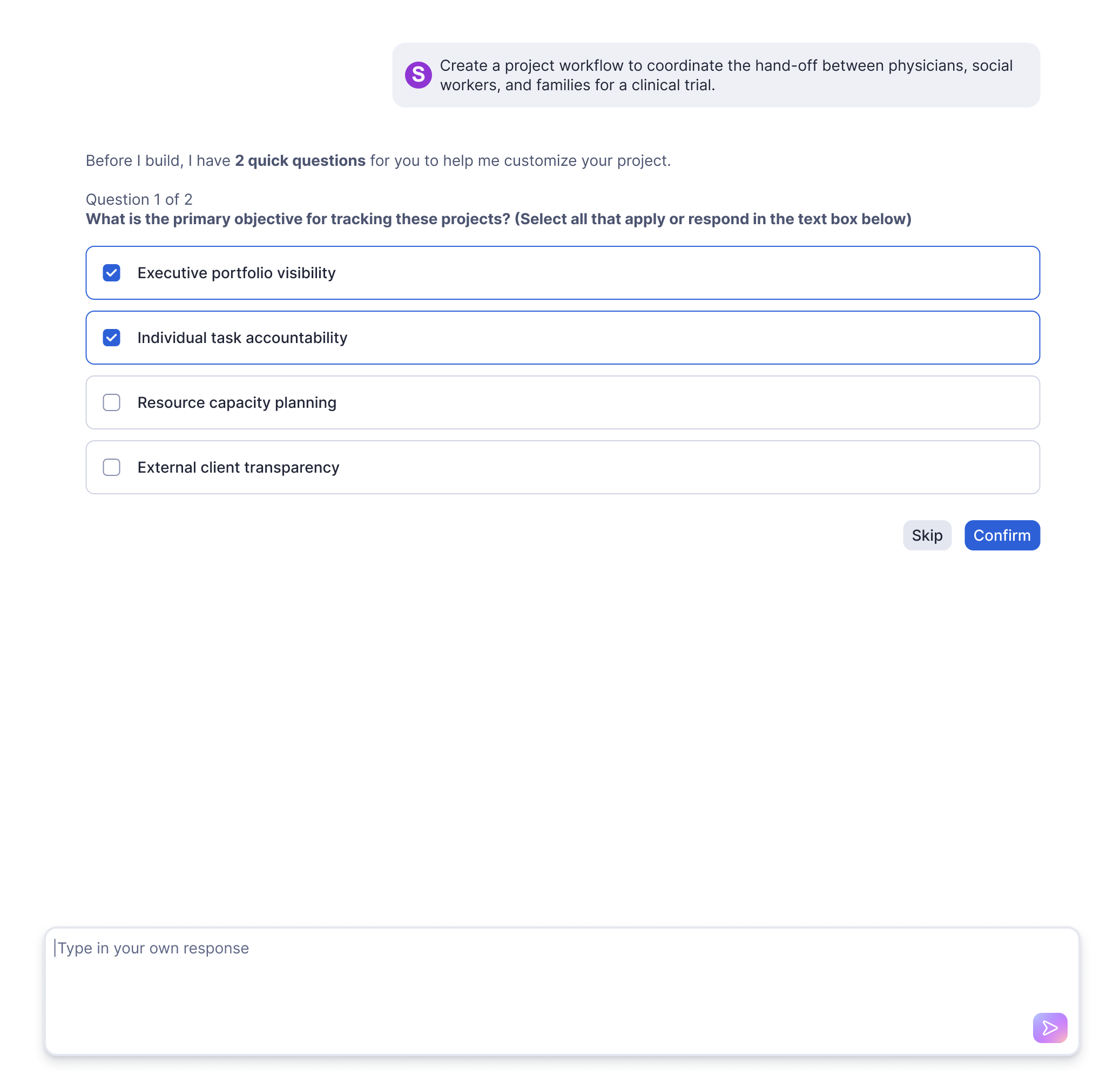
- When you confirm your plan, Smartsheet generates your workspace.
The AI builds your new workspace and generates sheets, dashboards, reports, and automations ready to use.