Remove a project from your portfolio or Advanced Portfolio when you no longer need it. Deleting a project permanently removes it from the project list and deletes its associated workspace and all items within it.
USM Content
Deleting a project permanently removes the project workspace and all its items. This action can't be undone.
- Open your portfolio or Advanced Portfolio in List view.
- In the project list, find the project you want to delete.
- Select the Actions menu (three-dot icon) on the project row.
- Select Delete.
Brandfolder Image
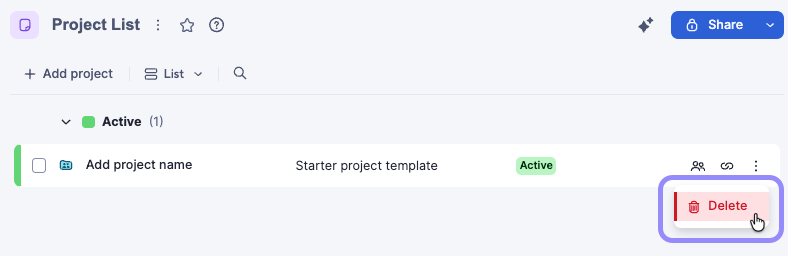
- Confirm the deletion by selecting Delete again in the prompt.
Brandfolder Image
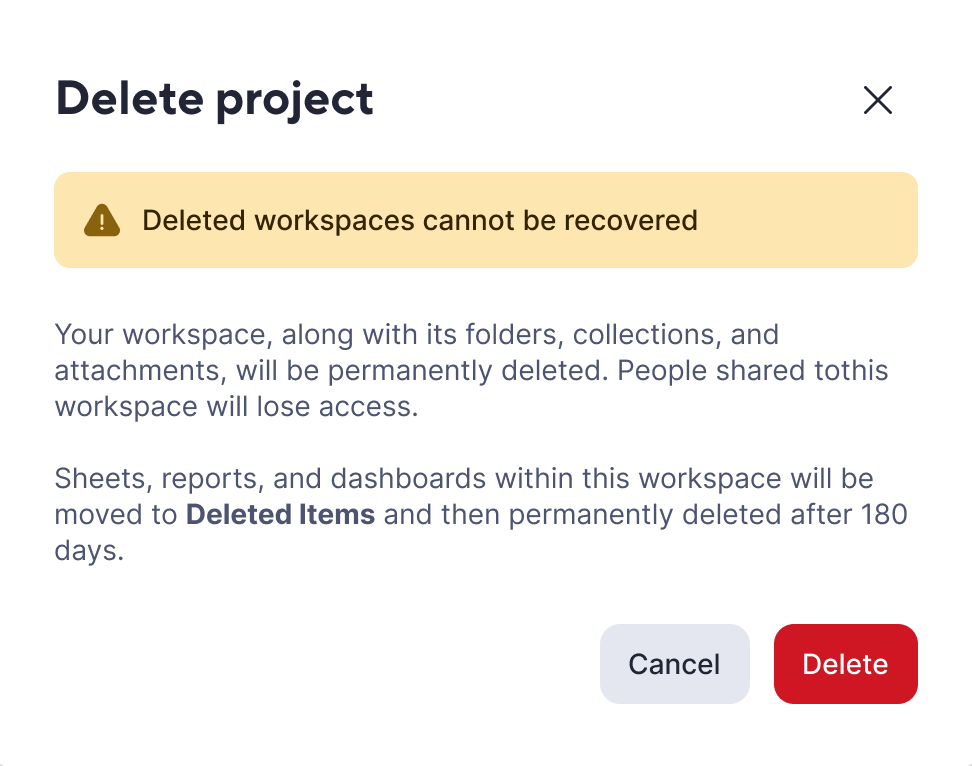
The project and its associated workspace are no longer part of your project list.
Things to consider
- Deleting an active project deletes the provisioned workspace and all items within it, including sheets, reports, and dashboards.
- There's no way to archive or deactivate a project at this time. Delete is the only option for removing a project from your portfolio. Archiving is planned for a future release.
- Deleting an inactive project removes it from the project list only, since there’s no associated workspace.
- Using Move Row automations to move a project row from the project list sheet to another sheet deletes the project workspace. Allow projects to remain on the project list sheet to retain project workspaces as needed.