USM Content
Feel free to switch views at any time. Switching to table view from any other view doesn't change data, ensuring consistency across all views.
Automated requests gather information from collaborators at the right time, without sharing your sheet and directing users to exactly the rows and fields they need to review.
Rows with active update requests have a request indicator
 . If the indicator shows a red dot, the update request is assigned to you.
To send update requests in Grid, Card, and Calendar views, refer to Request updates with workflows and manually send an update request.
Create update requests
You need Editor access or higher to create and manage update requests.
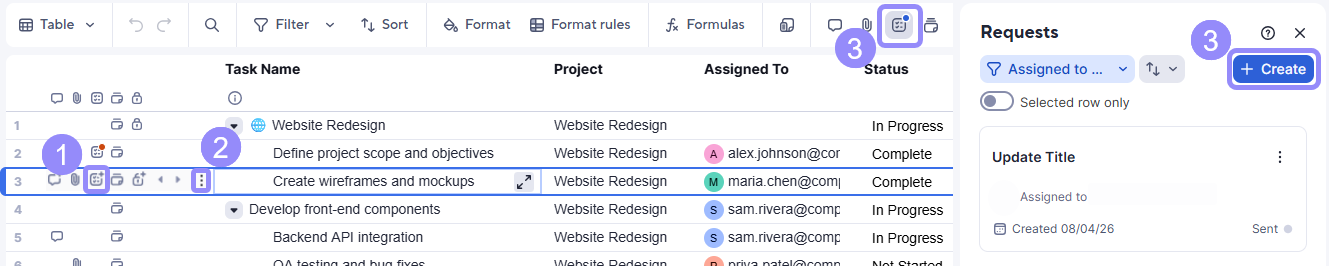
- Open the Create request panel in any of these ways:
- Hover over the desired row and select the Requests
 icon.
- Select Create request from the row menu, accessible by right-clicking on the row or the kebab
 button.
- Select Create in the Requests panel, accessible via the requests icon in the toolbar.
- Hover over the desired row and select the Requests
- In the Create request panel, fill out the assignee, row, and column information.
- Optionally, you can customize the update request title and message via the Customize message option.
- When ready, select Send.
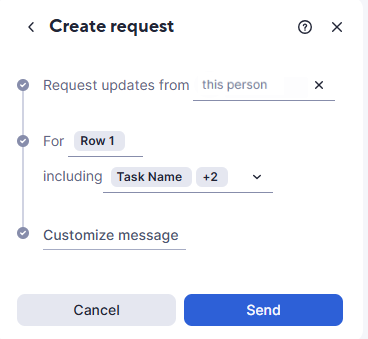
In Table View, you can only create update requests for one row and one assignee at a time.
Manage update requests
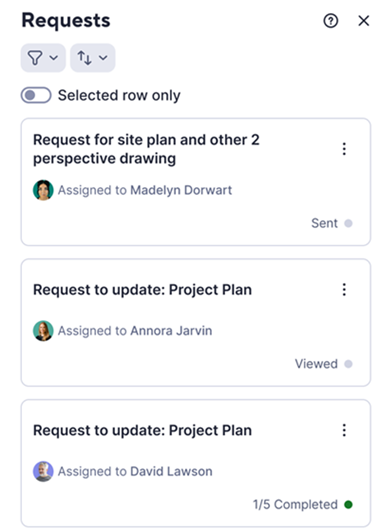
Open the Requests panel by selecting the requests icon
 in the toolbar, or from the request indicator icon
in a row. You can view all your pending update requests in one place.
In this panel, you can:
- Sort by Created date (earliest or latest)
- Filter by requests by Created by me, Assigned to me, or Assigned to someone else
- Toggle Selected row only to show requests linked to the row you're currently in
Automated requests are identified with a lightning symbol
 .
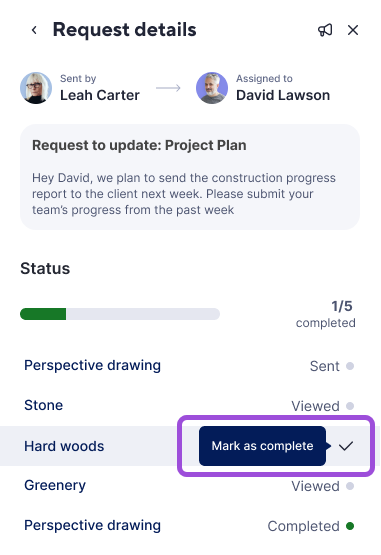
Each update request appears as a card. When you select one, it opens the Details panel, which displays the following information:
- Subject: The request topic
- Message: The request details
- Sender: The person who sent the request
- Requested fields: Number of requested fields
- Assignee: The person or contact list responsible for the request
- Status: Sent, Viewed, or Completed
Check update request status
Select an update request to open its details. When a request is assigned to multiple people, it appears as an individual card for each assignee.
The Viewed status only tracks views from the Details panel.
Complete an update request
You can complete an update request from the request card, from the Details panel or from the update request notification.
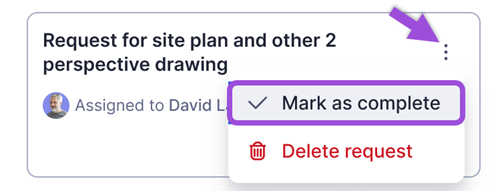
From the request card
- Select the kebab menu on the card.
- Select Mark as complete.
From the Details panel
- Hover over the update request.
- Select Mark as complete.
From the update request notification
- Open the notification from the notification center or from your email, if email notifications are enabled.
- Select Open request.
- Fill in the displayed form and select Submit.
Delete an update request
To delete a request, select the kebab menu on the request card, then select Delete request.
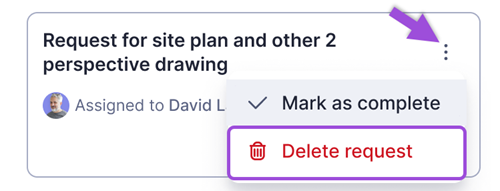
Once deleted, the request is removed from the panel.
Can I send requests to people outside my organization?
Yes. You can currently send Update and Approval Requests to anyone with an email address. They don’t need a Smartsheet account to respond.
Authentication requirements may change in the future.
Is request management available at the workspace level?
Not yet. Request management is currently only available at the sheet level.