Applies to
Capabilities
Who can use this capability
Any active licensed user in your Resource Management account can submit time for approval. Resourcing Admins can also submit time on behalf of others, but only if they are a licensed user (time cannot be tracked or submitted for managed resources).
Submit time for approval
All licensed users can submit time for approval.
- On your personal page, go to Time & Expenses.
- In time tracking, enter changes as needed, and then select Confirm.
At the bottom of the timesheet, select Submit for Approval.
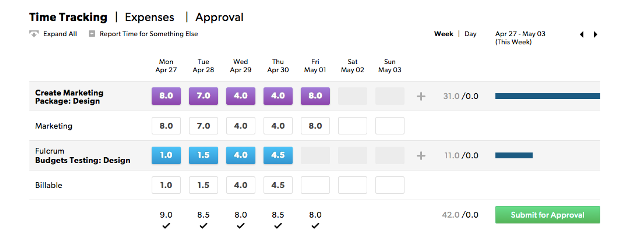
People can submit hours at any time, but it’s good to follow a schedule that works for your organization (daily, weekly, biweekly, etc.).
Add a resource as a Team Member to your project before you need to approve time. A resource who is not a Team Member can submit time against a project, but the Project Owner cannot see it
Approvals tab for Team Members
All users have a My Time & Expenses view under the Approvals tab. You can review all of your approved, pending approval, and rejected time or expense entries from the Approvals tab on your personal profile.

Review submitted time
- On the Approvals tab, select My Time & Expenses.
The left sidebar has filters that you can apply to your time and/or expenses:
- Time Frame: Use a preset or custom date range.
- Type: Switch between time and expenses (if your organization approves both).
- Approval Status: Show approved, rejected, or pending approval status.
Re-submit time
You can re-submit a timesheet any time before it's approved.
- Edit the time entry that you’d like to adjust, and then select Re-Submit for Approval.
