Applies to
Capabilities
Who can use this capability
Resourcing Administrators can create placeholders.
Use placeholders in projects
Use placeholders to schedule a project when you don’t yet know who will be performing the work. Like people, placeholders can have a role, discipline, and a custom bill rate, so you can see how their assignments impact your project budgets.
With placeholders, you can:
- Budget a project: Create assignments for specific roles and disciplines, without impacting anyone's actual schedule or utilization. The placeholder can be set up with any bill rate you choose for improved budgeting accuracy.
- Resource Manager workflow: Managers can use placeholders to request a team member from a Resource Manager. An assignment for a placeholder lets the Resource Manager know someone needs to be assigned to that project.
- Projecting staffing needs: Use placeholders to schedule future projects. Once they’re scheduled, utilization reports will show you what disciplines can handle the workload and where you may need to hire help. You can estimate how future hires will impact estimates. When you hire, you can reassign those assignments to the new person on your team.
Create placeholders
-
Go to Placeholders in the Settings > Account Settings menu > Placeholders.
-
Select Add.
-
Configure your Placeholder, including Discipline, Role, Placeholder title, Abbreviation, and Color. Discipline and Role are recommended for filters and assignments, but not required.
-
Select Show More to review additional settings for Bill Rate, Location, and other custom fields for Language, Travel Locations, Skills, and Project Management.
-
Once you have completed your settings, select Save.
That’s it! You have created a placeholder.
Placeholders have an auto-generated image based on an abbreviation and a color. The image, abbreviation, and color can be changed in the account settings.
Add placeholders on the project page
Add placeholder assignments from either the project schedule or the project worklist.
On the schedule:
- Click on a phase or any white space on the schedule.
- Select Add Team Member to apply filters or to search for the name of the appropriate placeholder.
On the worklist:
- Hover or click on the name of the project or phase.
- Select Add Team Member.
- Search for the name of the appropriate placeholder.
Add and filter placeholders on the schedule
You can add placeholder assignments to the schedule, just like an assignment for any person.
To create a new assignment, click on any white space on the schedule and select New Assignment.
Use filters to find the placeholders and people you’re looking for. Placeholder assignments appear semi-opaque, indicating that those assignments belong to a placeholder.
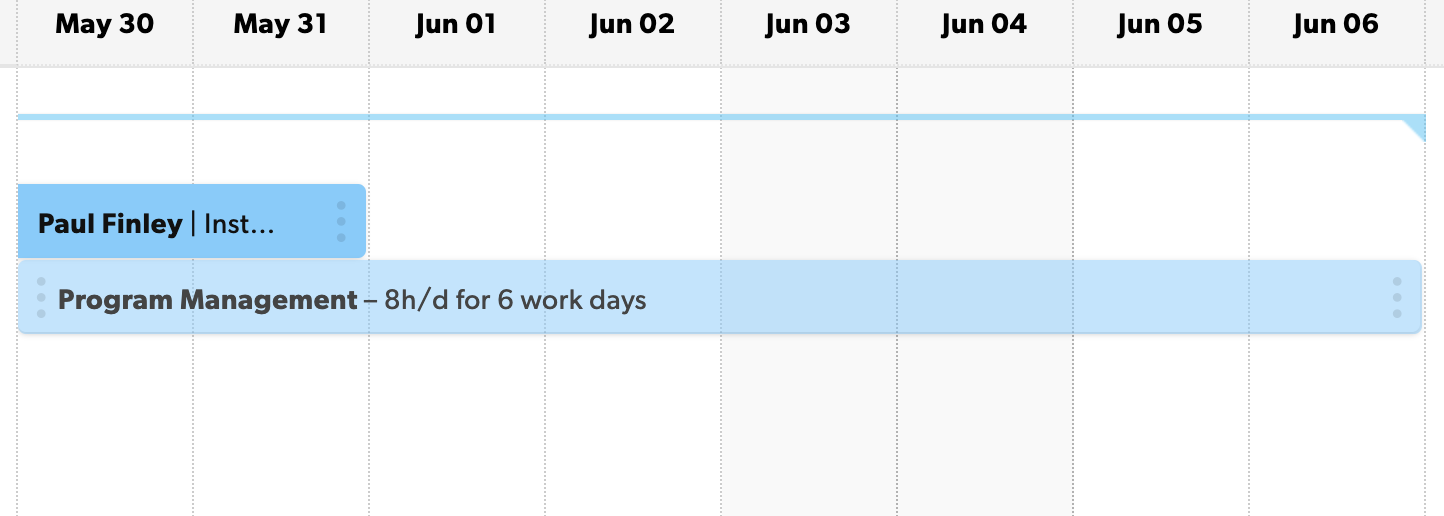
Use the assignment status filter to view assignments for the staff or for placeholders. Confirmed assignments are staffed to people in the account, while placeholder assignments are specifically for placeholder team members.
Find placeholders in reports
- Group your reports by team member type to separate placeholder assignments from confirmed team member assignments.
- Change your filter criteria to find the placeholders, people, and projects you’re looking for.