Applies to
Review, manage, and log in to apps and integrations manually
Use the Launcher option in your rail to access and log in to Premium Apps.
If you don’t see what you’re looking for in the Launcher, you can search your app from the Apps list in Smartsheet.
Make changes in the Apps list to influence what shows up in the Launcher. For example, if you don't see an expected tile or it isn't in the Launcher at all, log in to the app from the Apps list to make it reappear.
View the Apps list in Smartsheet
- On the left Navigation Bar, select Account > Apps & Integrations.
- Select Apps.
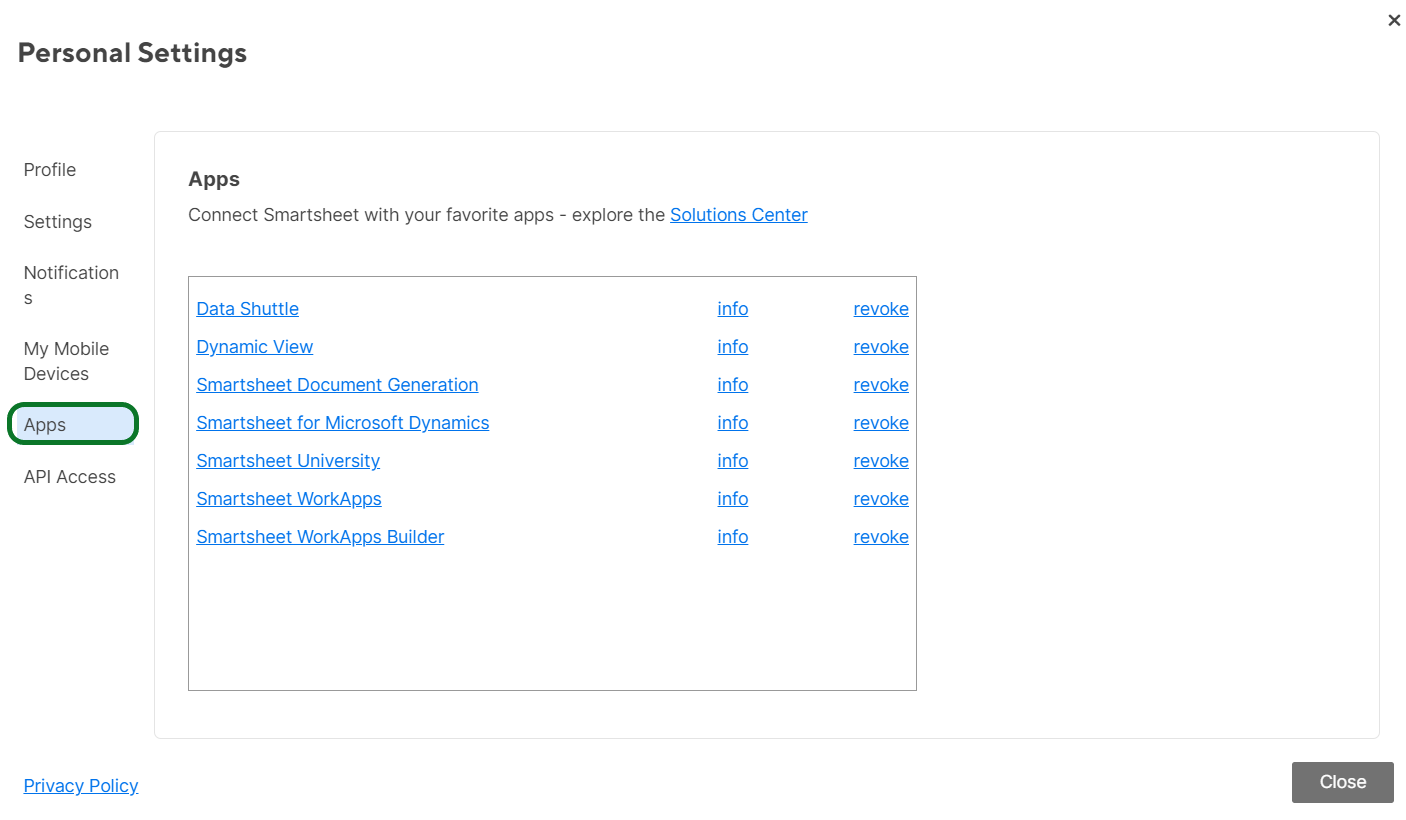
The list shows all apps you’ve logged in to, even if you don’t have access to use them. For example, you might not have access to an app because you or your Smartsheet Admin decided to stop including a certain app in your plan.
Log in to an app from the Apps list
To log in to an app from the list, select the app name. Then follow the login prompts.
Remove an app tile from the Launcher
For certain apps, you can control whether you want to continue to see them in the Launcher.
If your entire organization has a license for an app, you can't remove it from the Launcher.
To remove an app tile from the Launcher
- On the left Navigation Bar, select Account > Apps & Integrations.
- From the list of apps, locate the name of the app that you want to remove from the Launcher, and select Revoke.
- doesn't show up anymore, and its tile won't appear in the Launcher.